
|
Article Title |
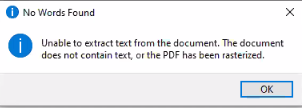
Graphics Inspection Error “No Words Found - Unable to extract text from the document. The document does not contain text, or the PDF has been rasterized.” |
|
Type (Procedural / Informational /Troubleshooting) |
Troubleshooting |
|
Software |
GVD |
|
Software version |
V5.7.X and below |
Problem:
A file would not load into GV correctly. The user was getting an error message “No Words Found - Unable to extract text from the document. The document does not contain text, or the PDF has been rasterized.” See:
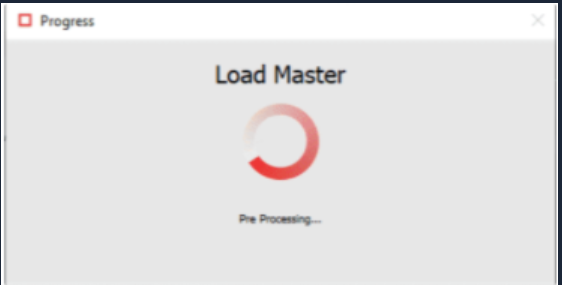
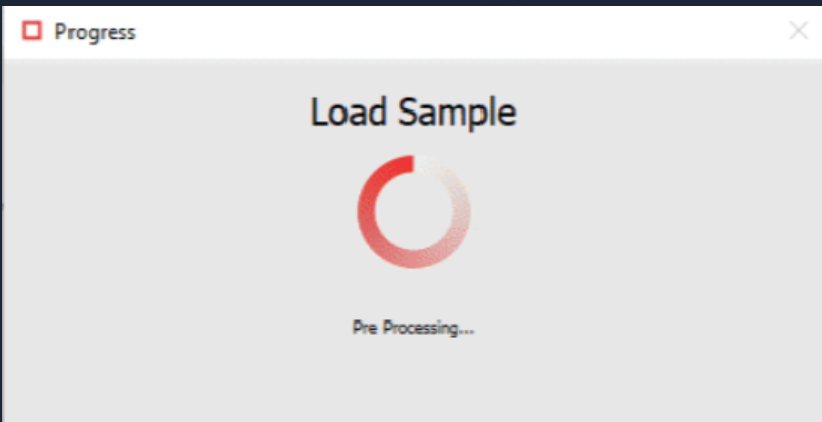
In this case, adding a marquee to a text that is not live text for a Graphics inspection would be enough to cause the error but having the following Pre-processing windows appear periodically when preparing the Master and Sample files for inspection is also a good indication that you should proceed with the suggested resolution.
Resolution:
This issue is usually caused by a specific feature in the system preferences. Go to Preferences > “Text and Spelling Inspection” and uncheck “Preload files for text comparison”:
After unchecking that box, the issue is resolved.