
User Interface
-
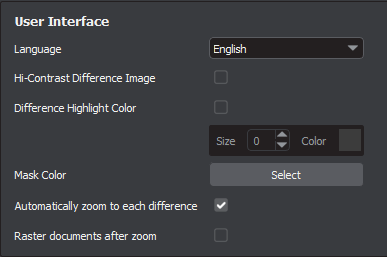
Language: Default is English, also GlobalVision also supports Chinese, Czech, French, German, Italian, Japanese, Korean, Polish, Portuguese (Brazil), Russian, Slovenian, and Spanish.
-
Hi-Contrast Difference Image: Displays differences between Master and Sample images in high contrast.
-
Difference Highlight Color: If checked, this option highlights Graphics Inspection differences in the mask of customizable color and size. Re-inspect for the changes to take effect.
-
Mask Color: This option lets the user set the mask color, with the ability to pick screen or custom colors.
-
Automatically zoom to each difference: If checked, the selected difference, barcode, or Braille region is zoomed in, instead of just highlighted.
-
Raster documents after zoom: If checked, Barcode, Text, or Spelling Inspection files raster automatically to add clarity and less pixelation.
Scanner Settings

-
Show Scanner interface: If checked, the application goes through the scanner software while scanning. If un-checked, the scanner software is not displayed.
-
Color Library: Select the preferred color library from the list, based on the connected color-calibrated GlobalVision scanner.
Measurement

-
Default unit: Choose your unit in which lines or rectangles shall be drawn using the Measurement Tool.
Color Profiles

-
RGB Profile: RGB Profile is used to display the color space in the user interface. The default profile is AdobeRBG1998.icc.
-
CMYK Profile: CMYK Profile is used to display the color space in the user interface. The default profile is USWebCoatedSWOP.icc.
-
NetImage Profile: The color calibration file for the connected NextImage scanner(to be used in conjunction with Color Inspection Mode).
-
GlobalVision C8 Profile: The color calibration file for the connected GlobalVision C8 scanner (to be used in conjunction with Color Inspection Mode).
Job Settings

-
Show Job Interface: If checked, this option automatically loads the Job Wizard whenever the application is opened, or the interface is reset.
-
Job Master Path: Set default path loaded when selecting master files on the Master & Sample Selection screen of the Job Wizard.
System Paths

-
Cache Path: Set where data is stored by the application.
-
Report Path: Set the location of where generated reports are to be saved.
-
Image Save Path: Set default path while saving images.
-
Show font substitution notifications: Ability to show or hide the font substitution popup message from the UI. By default, set to show.