
Once GVD is installed, Administrators given the credentials can create users.
Note: The Application is installed with a default administrator account. To obtain the default administrator username and password, contact GlobalVision Support by email at support@globalvision.co or by telephone at 1-800-501-0511.
Login
To log in to the Application:
-
Click the Application shortcut on your desktop. The Login window displays.
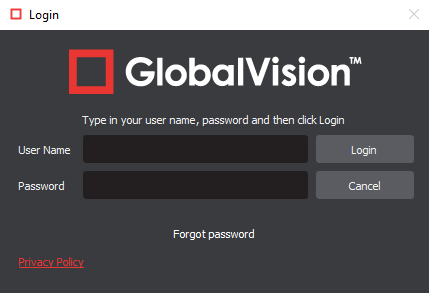
Login Window
-
Enter your Username and Password and click Login.
Note: First-time login will require you to enter the default administrator username and password provided upon installation of the application.
Change Password
To change your password:
-
Click Menu → Change Password.
-
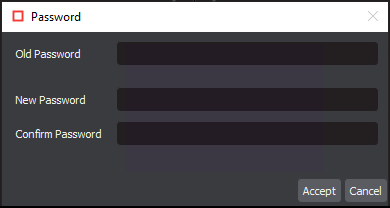
The Password window displays, allowing you to create a new password:
-
Enter your old password in the Old Password text box.
-
Enter your new password in the New Password text box.
-
Enter your new password again in the Confirm Password text box.
-
Click Accept. Click OK once the notification window displays.
Note: Only applicable for valid local user accounts. Go to Add Local User Account to learn more about local user creation and management.
Logout/Exit
To log out of the Application:
-
Click Menu → Logout to save your session and return to the Login window.
To exit the Application and ensure all changes made to the system go into effect with the next log-in:
-
Click the X at the top of the window.
Help
The following options are available to you upon clicking the Help icon:
-
Select About to get version details about the Application.
-
Select Shortcuts to display all keyboard shortcuts.
-
Select Video Tutorial to consult GlobalVision support videos on particular features.
-
Select Give Feedback to request new features or report bugs.
-
Select GlobalVision Support to link to the GlobalVision online knowledge base.
-
Select Licensing to display the Serial Number and Company Name.