
This page provides an overview on translating a webpage to any language using the Google Translate extension in Google Chrome.
Please refer to the User Guide for recommended web browsers.
In this document, we will walk you through the step-by-step process of translating our main page and the main login screen for both Verify Compare and GVW - our browser-based apps - to any desired language using Google Translate's user-friendly features.
As a preliminary step, please make sure the the Google Chrome Translate Extension is available in the browser.
If you are unsure or it’s not yet available, please follow the steps described to add it to the browser.
How to Check
Go to tools in the Chrome window (click on the three dots next to the user). Select Extensions, then Manage Extensions.
When Google Translate is available, it will show under the tools directly as Translate… as well, as visible in a screenshot under Step 3.
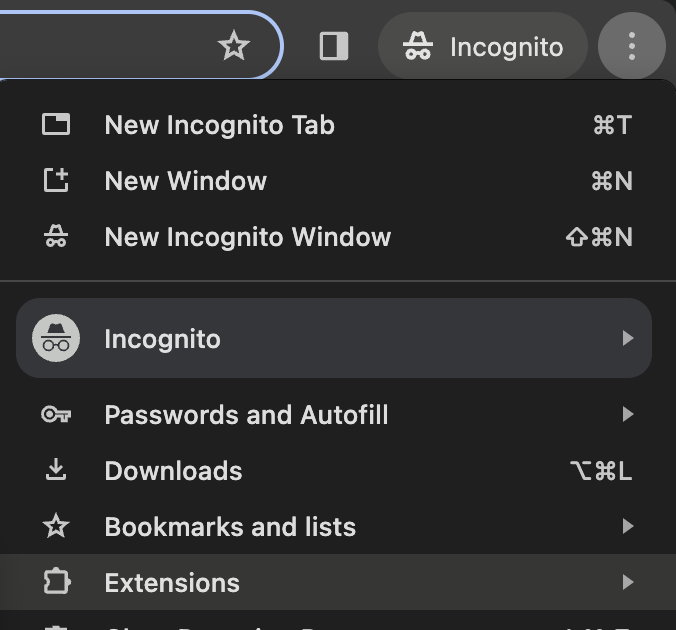
Check under the list of All Extensions.
If Google Translate is not visible, it’s not yet available in the browser.
How to Add the Extension
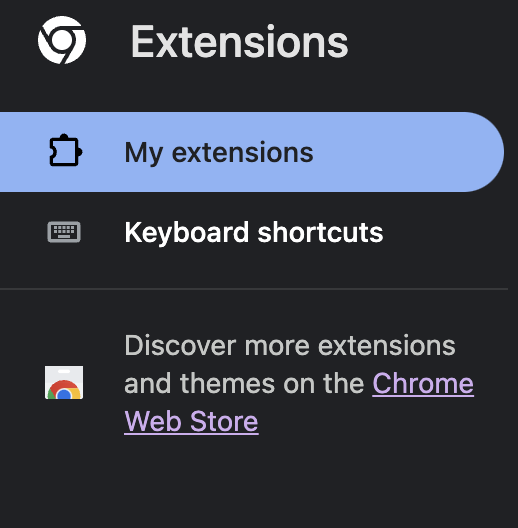
Under Extensions, on the left there is a link to the Chrome Web Store. Click on the link to reach all available extensions, or use this same link directly.
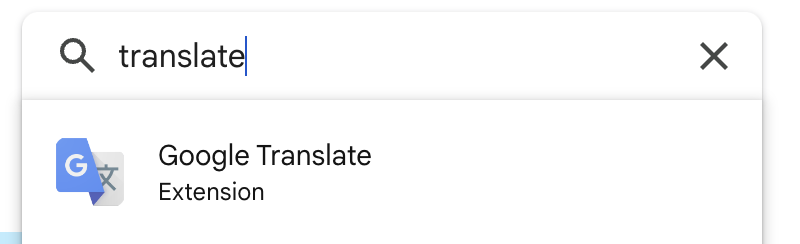
Type Translate in the search bar on the top right of the screen. Choose the one marked as Google Translate (most likely the first item in the list).
Click on Add to Chrome then confirm the addition by click on Add Extension in the popup window.

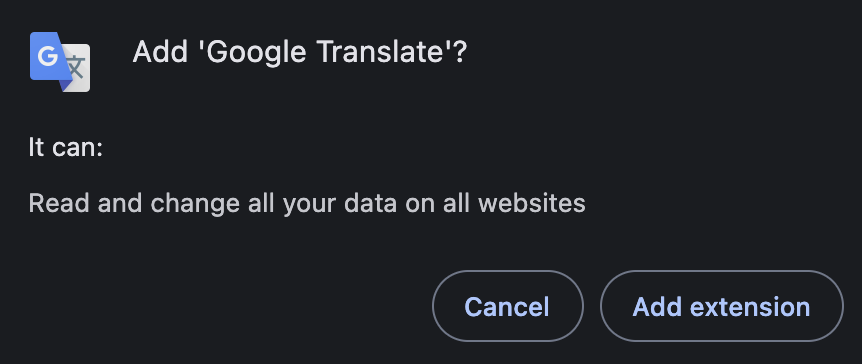
The browser needs to be restarted for the extension to be available.
Step 1: Open GlobalVision’s homepage
This page does not need to be translated to a different language for the applications to be accessible in the target language, only if so desired by the user.
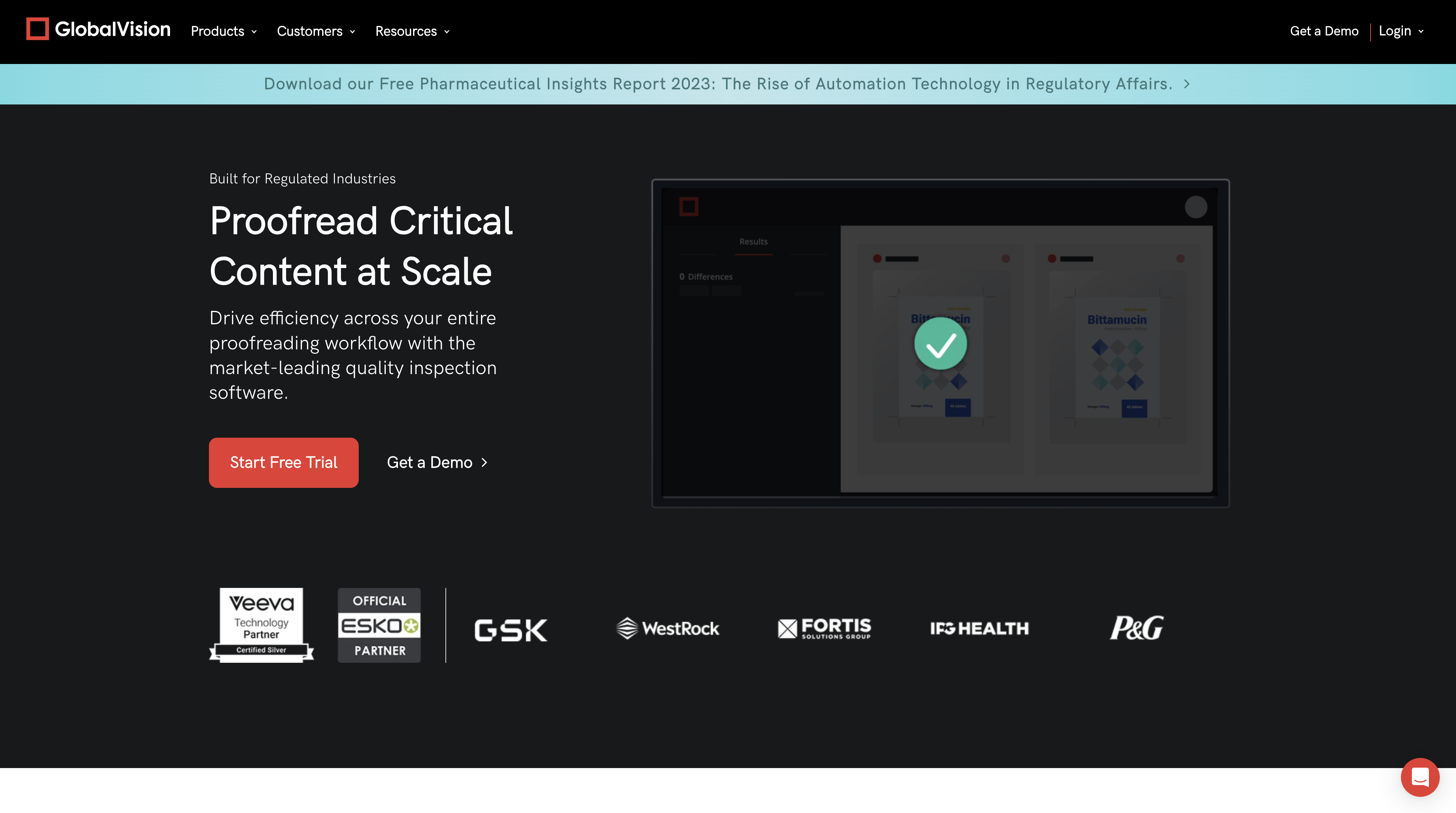
[OPTIONAL] Step 2: Translate Main Page to a Different Language
Please refer to the description below for the required steps.
Step 3: Access the Applications & Translate the Login Pages
In our example, we’ll follow the case of translating the relevant pages to French.
Go to Login on the main page in the upper right corner.
Depending on whether the GlobalVision Page was translated, click on Login or Se Connecter to reach the applications.
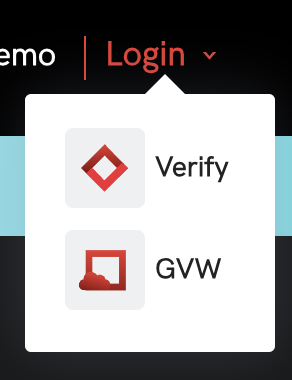
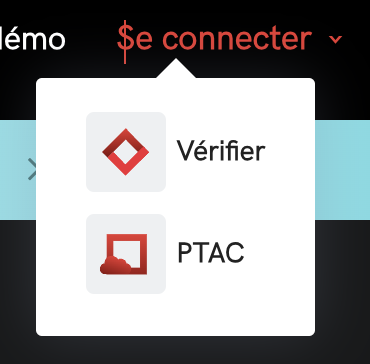
Select the desired application, which will be displayed in English first.
Go to tools in the Chrome window (click on the three dots next to the user). Select Translate.
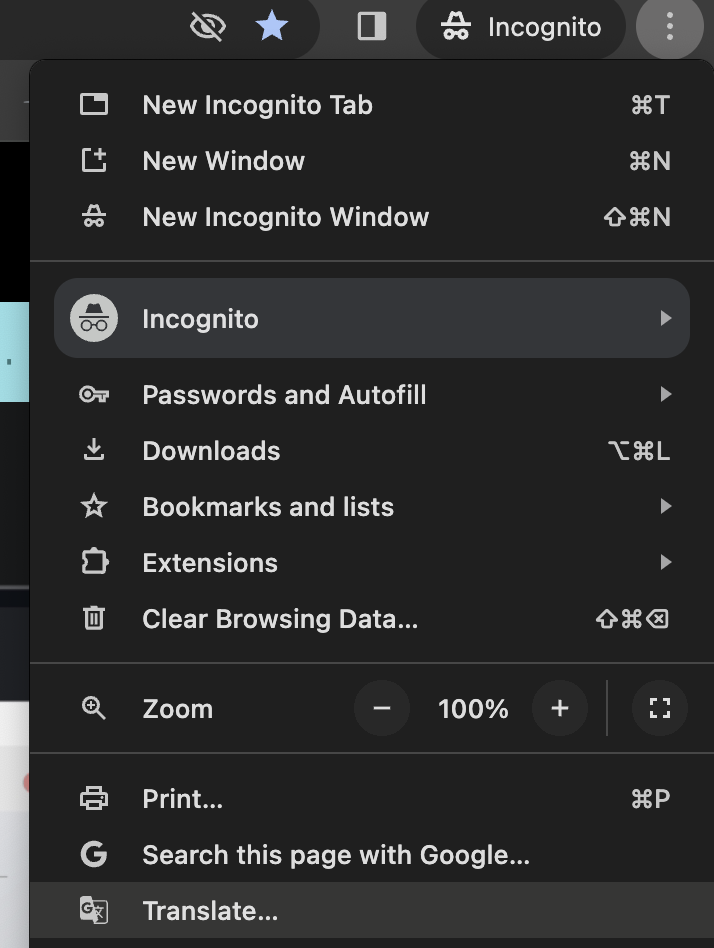
Select origin and target languages by clicking on the three dots.
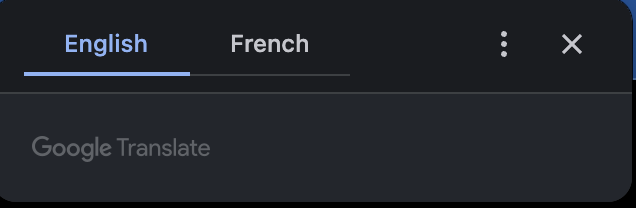
Select Choose Another Language...
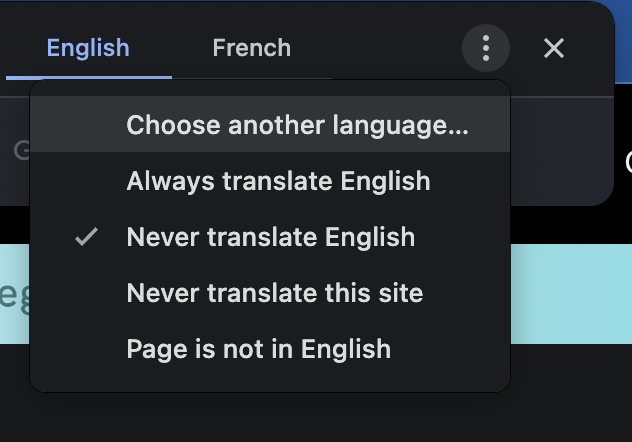
Select French, in our case, from the dropdown.
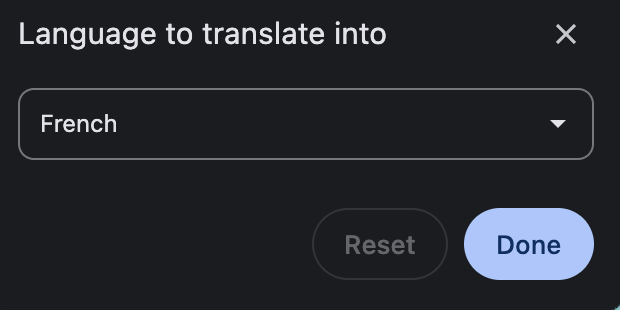
Naturally, any other language may be selected that is desired by the user.
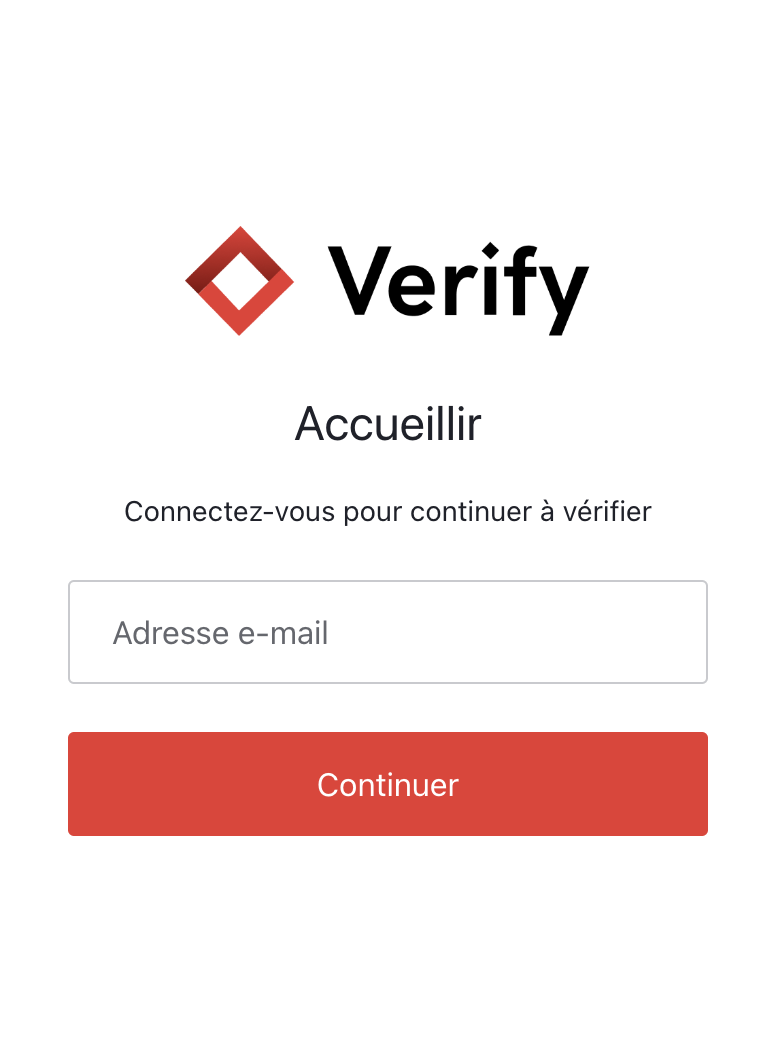
Click Done and then close this small window. The page will be translated to French, in this case.
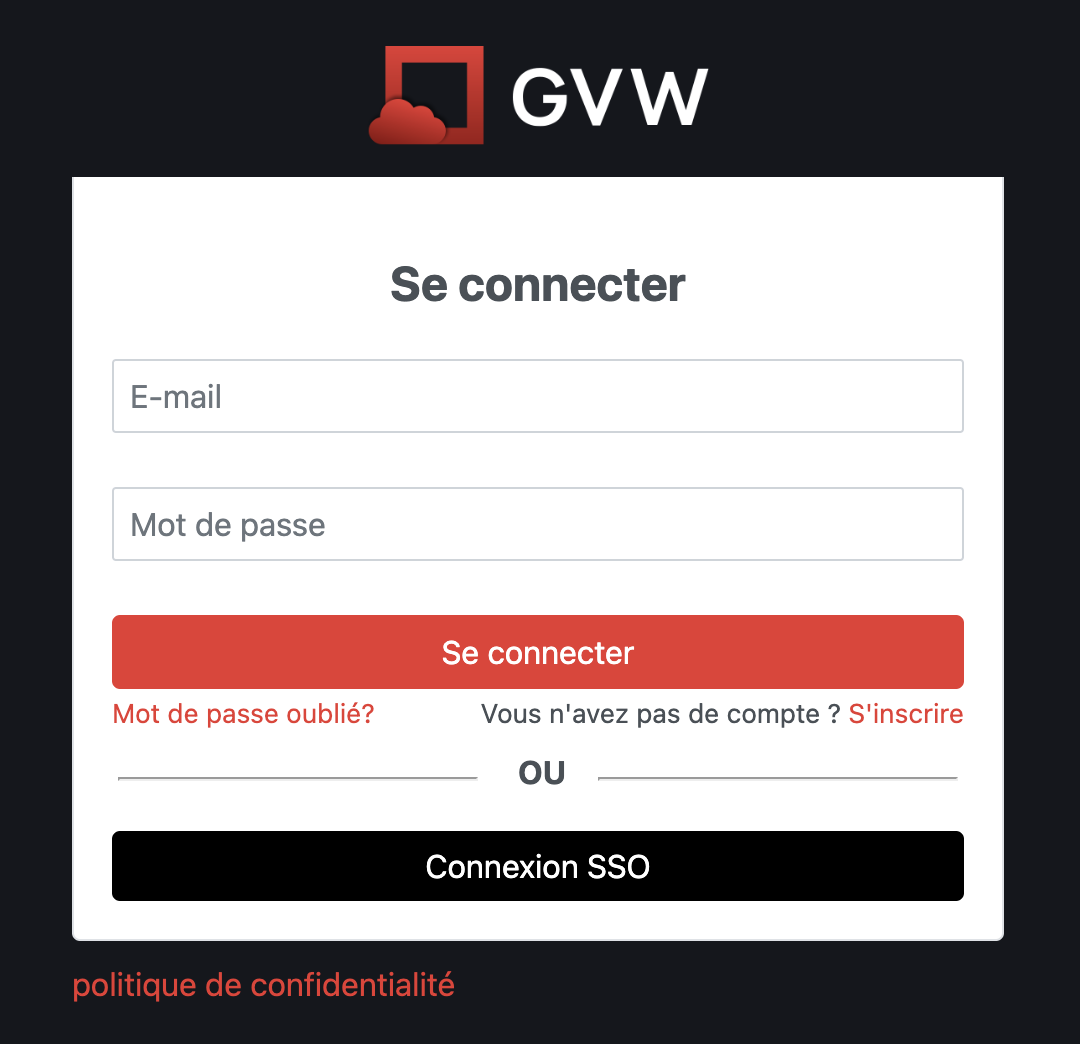
Translate Training Videos
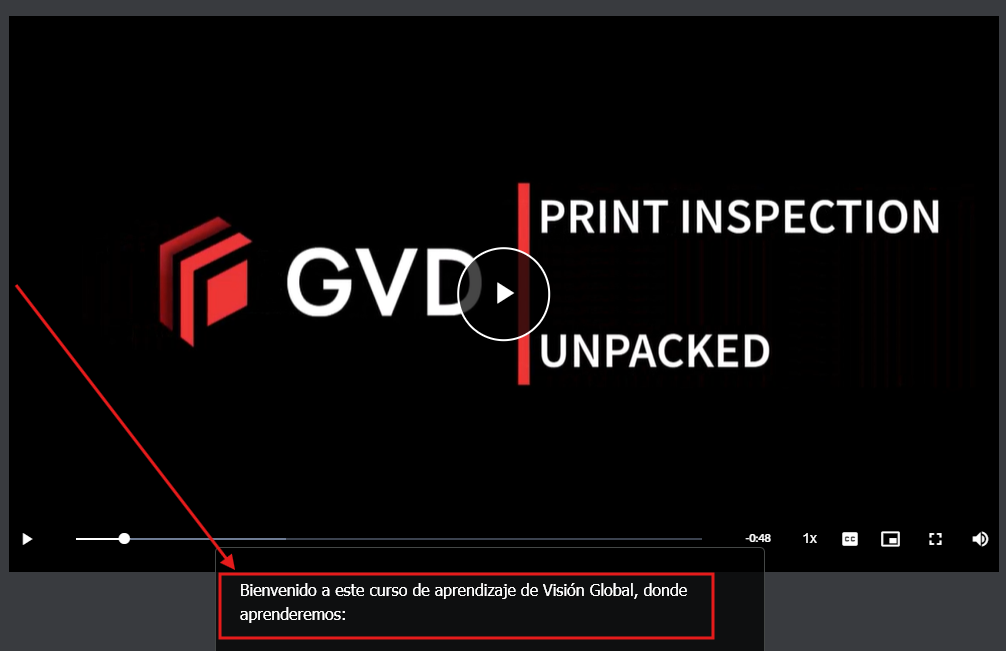
When watching GlobalVision training videos in Chrome, you can enable Live Translate to see translated captions in real time.
Here’s How:
Get to the accessibility settings by entering the following into your address bar : chrome://settings/accessibility)
Or follow the steps below
Step 1: Open Chrome Settings
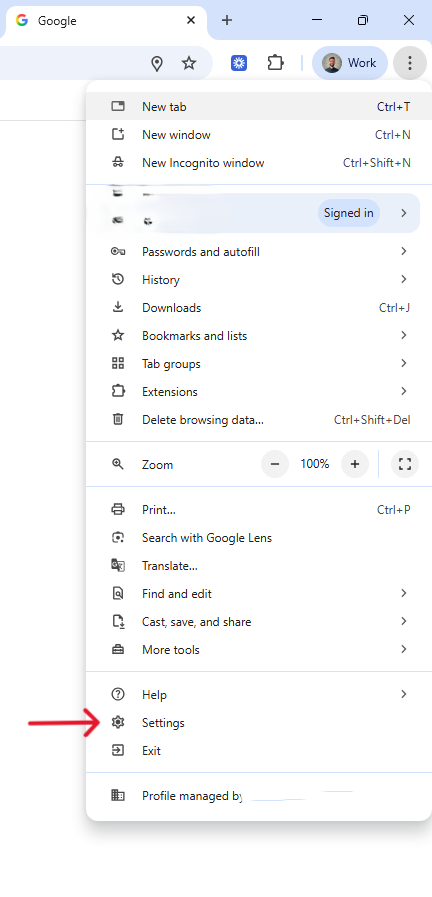
Step 2: Select Accessibility settings
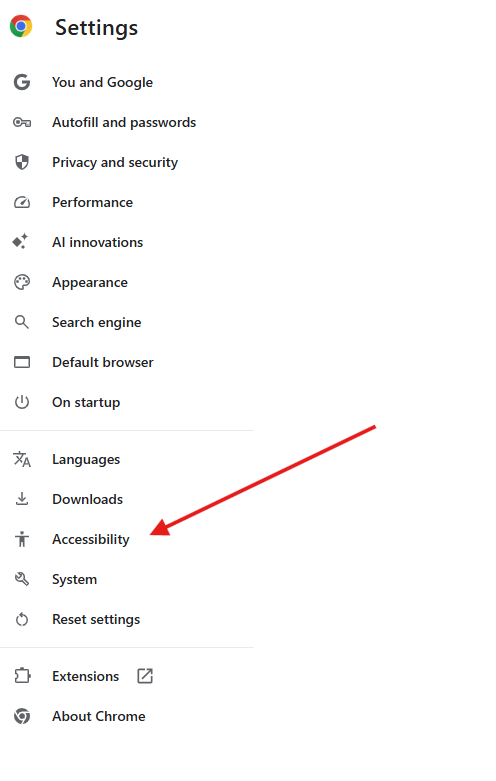
Step 3: Turn On Live Translate
In the accessibility settings, you can turn on the ‘live translate' feature and select the language you prefer.
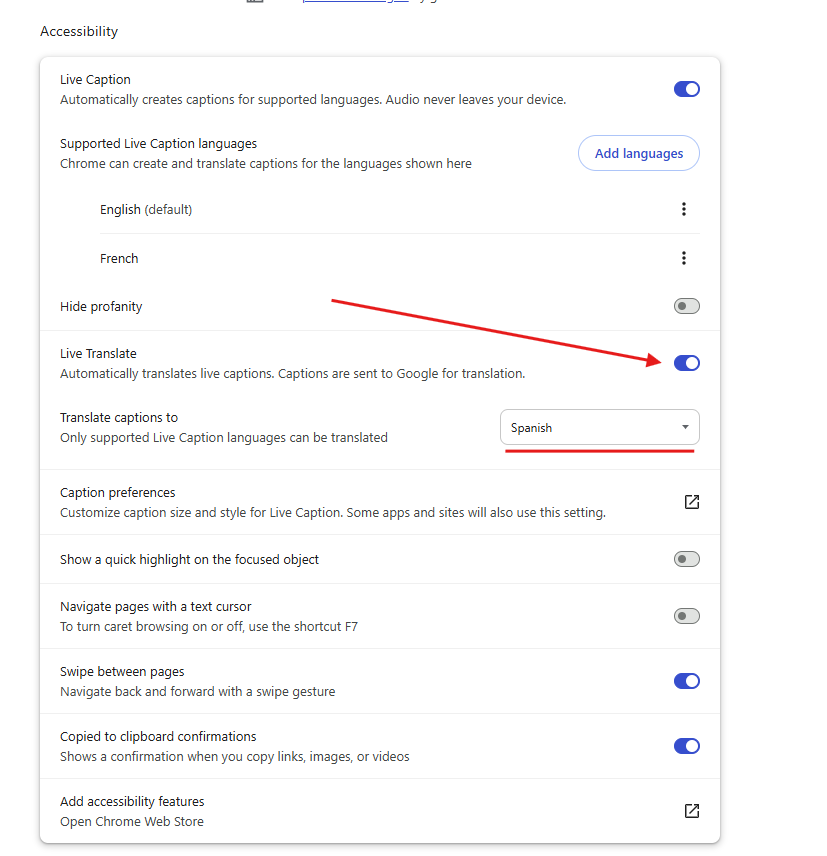
Captions will appear on your videos in the chosen language:
NOTE: You might need to close Chrome and relaunch for the change to take effect.