
CheckAI User Guide
How to run compliance checks on your artwork and label content using Verify CheckAI.
What is CheckAI?
CheckAI is an AI-powered compliance co-pilot designed for CPG companies to automate the review of labels and artwork against global regulatory requirements and internal brand guidelines.
It is used to streamline compliance by identifying complex errors—such as incorrect allergen declarations, font size violations, and contextual spelling mistakes—to ensure accuracy across global markets.
Key Capabilities include:
-
Multi-language Support: Handles major languages including Arabic, Thai, and Chinese.
-
Global Coverage: Automatically detects and applies regulations for different jurisdictions like the FDA and Health Canada.
-
Intelligent Validation: Verifies mathematical consistency (e.g., "Per 100g" vs "Per Serving") and flags imagery conflicts (e.g., text says "Chocolate Chip" but the image shows "Oatmeal Raisin").
Workflow Overview
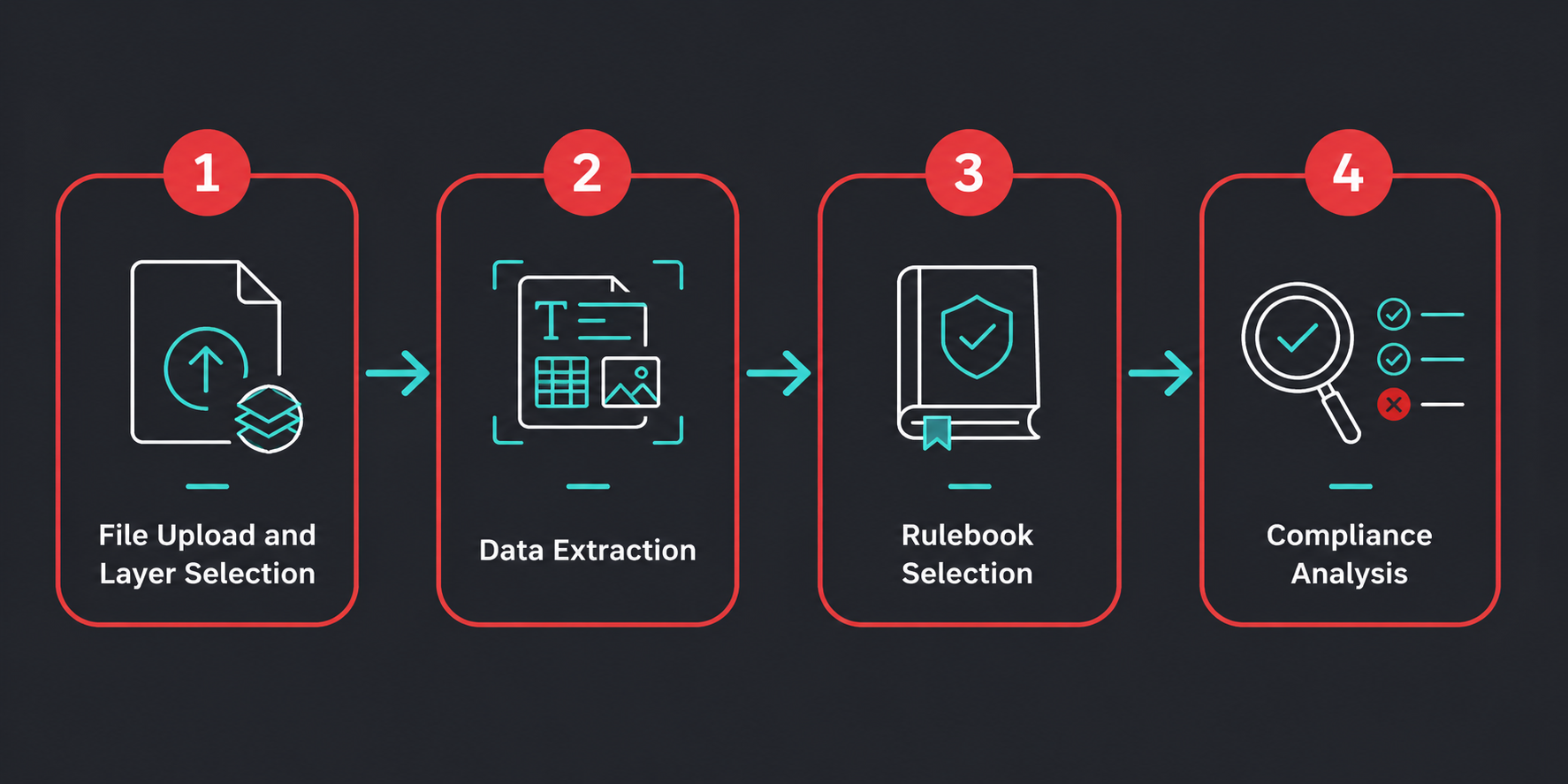
At a high level, the Verify CheckAI workflow is structured into the following phases:
First, users upload their artwork or document and define which layers or content should be included in the analysis, allowing for greater control over what is evaluated.
Second, the ‘Start Extraction’ begins. The system starts understanding and categorizing your uploaded document. It parses sections of the file and identifies key elements and categories.
Third is the 'rules' stage, which allows you to select which rulebooks you would like to compare your document against. You can check for compliance against internal rules, or externally fetched regulations.
Finally, the fourth stage is where the software checks for compliance based on its analysis of your uploaded file and your selected rules, cross referencing and analyzing the extracted data to detect errors, inconsistencies, and potential risks before production.
The following user guide will breakdown each of these steps into further detail.
0.0 Getting Started
User Login
|
Domain Access to CheckAI |
|---|
This is where you log in to Verify CheckAI.
Your login credentials are the same as your Verify account.
Access to CheckAI is managed through the Verify platform. Users log in using the same credentials as their Verify account.
If you need help accessing your account or are experiencing issues logging in, please refer to the Verify Login help center article for guidance.
Tenant Management
User access and account management are handled through the Verify platform.
To add new users as an admin, follow the process outlined in the “My Team” section of the Verify admin guide.
User provisioning, access control, and account management are all handled within Verify, including SSO configuration and tenant-level settings. Once a user has been provisioned in Verify, they can log in to CheckAI using their existing Verify credentials.
Tenant admin guides for verify can be found here: Verify Admin Guide
1.0 - Loading Files and Selecting Layers
Uploading a file
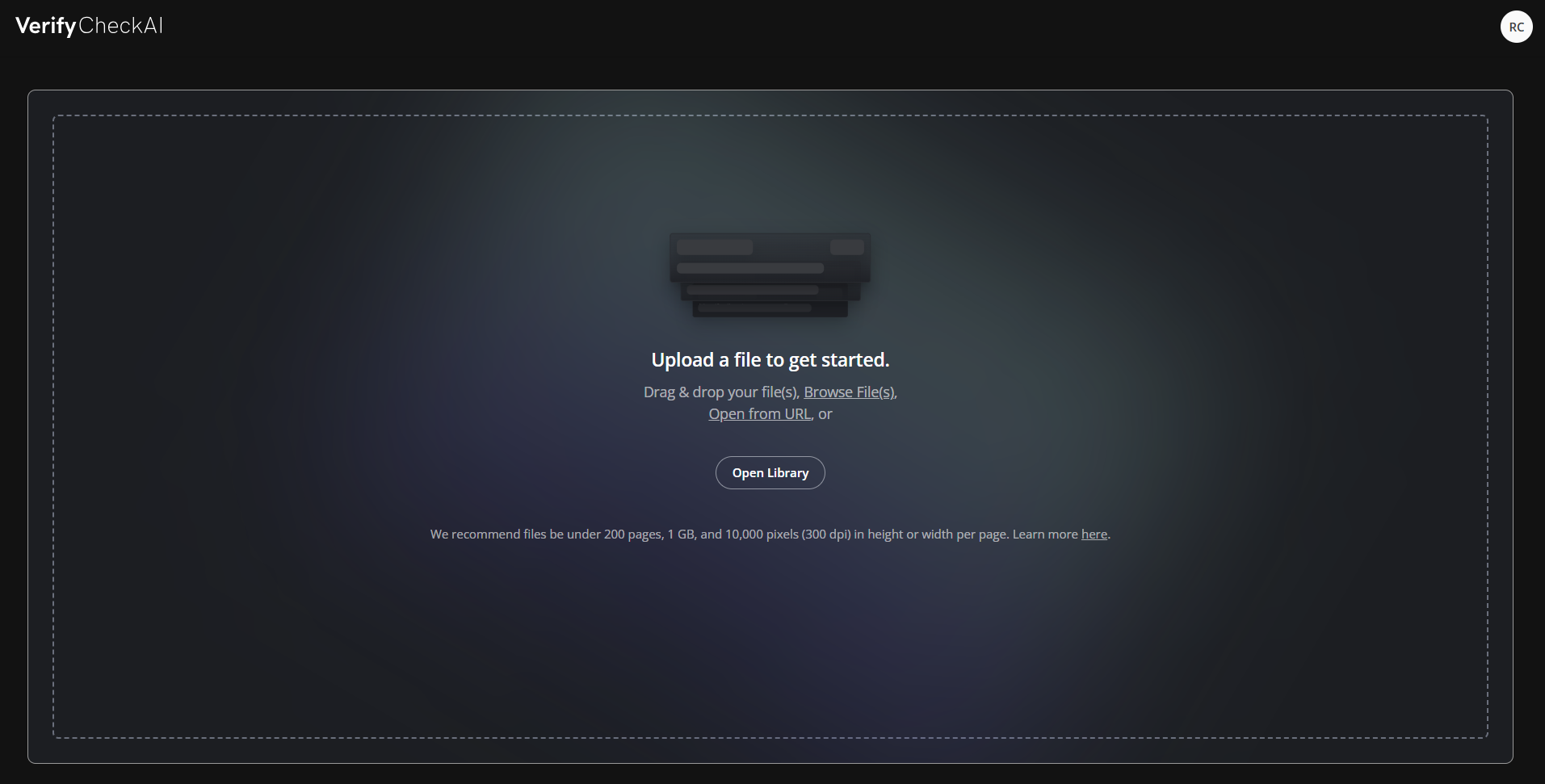
Drag and drop a file into the main window to upload it.
You can also select ‘Browse Files’ to open a file explorer and navigate to your document.
If you have already uploaded a file in the past, it will be available in the library, which can be accessed by clicking 'Open Library”
Supported File Types:
-
DOC/DOCX
-
PPT/PPTX
-
PDF
-
XLS/XLSX
-
XML
-
PNG
-
JPG
-
JPEG
-
TIFF files
-
ZIP files (only containing SPL documents)
-
CSV
-
AI (in compatibility mode)
-
HTML
Document Controls
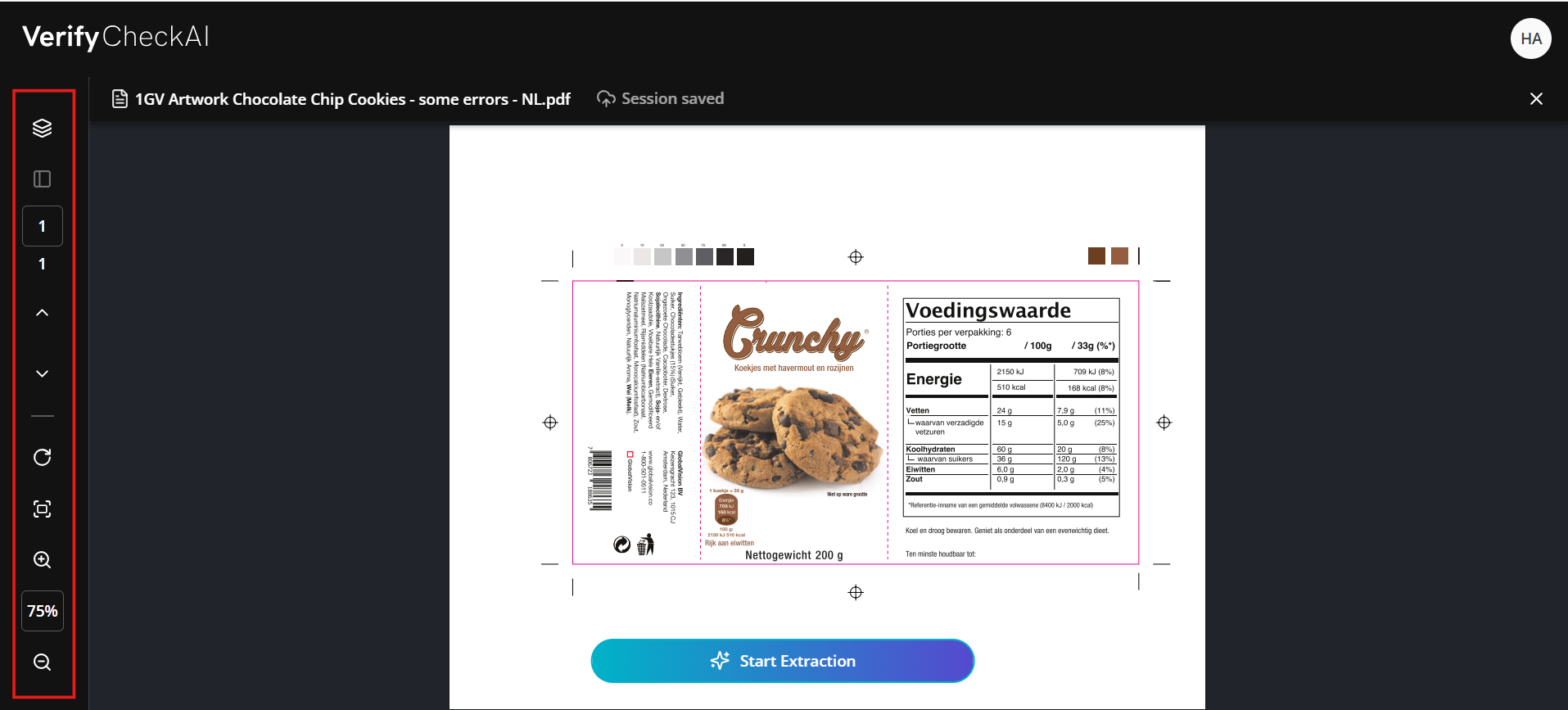
The document controls are located in the left-hand panel and provide tools to help you navigate and adjust your file during review. These controls include options for managing layers, as well as standard viewing functions such as page selection, rotation, zooming in and out, and fitting the document to the screen.
Selecting Layers
Layer selection allows you to control exactly what content is included in the analysis.
After uploading a file, you can choose which layers to make visible before starting the extraction process.
NOTE: Only the layers that are turned on will be analyzed by CheckAI, while any layers that are hidden or turned off will be excluded.
This ensures that only the relevant elements of your artwork or document are evaluated, giving you more precise and intentional results.
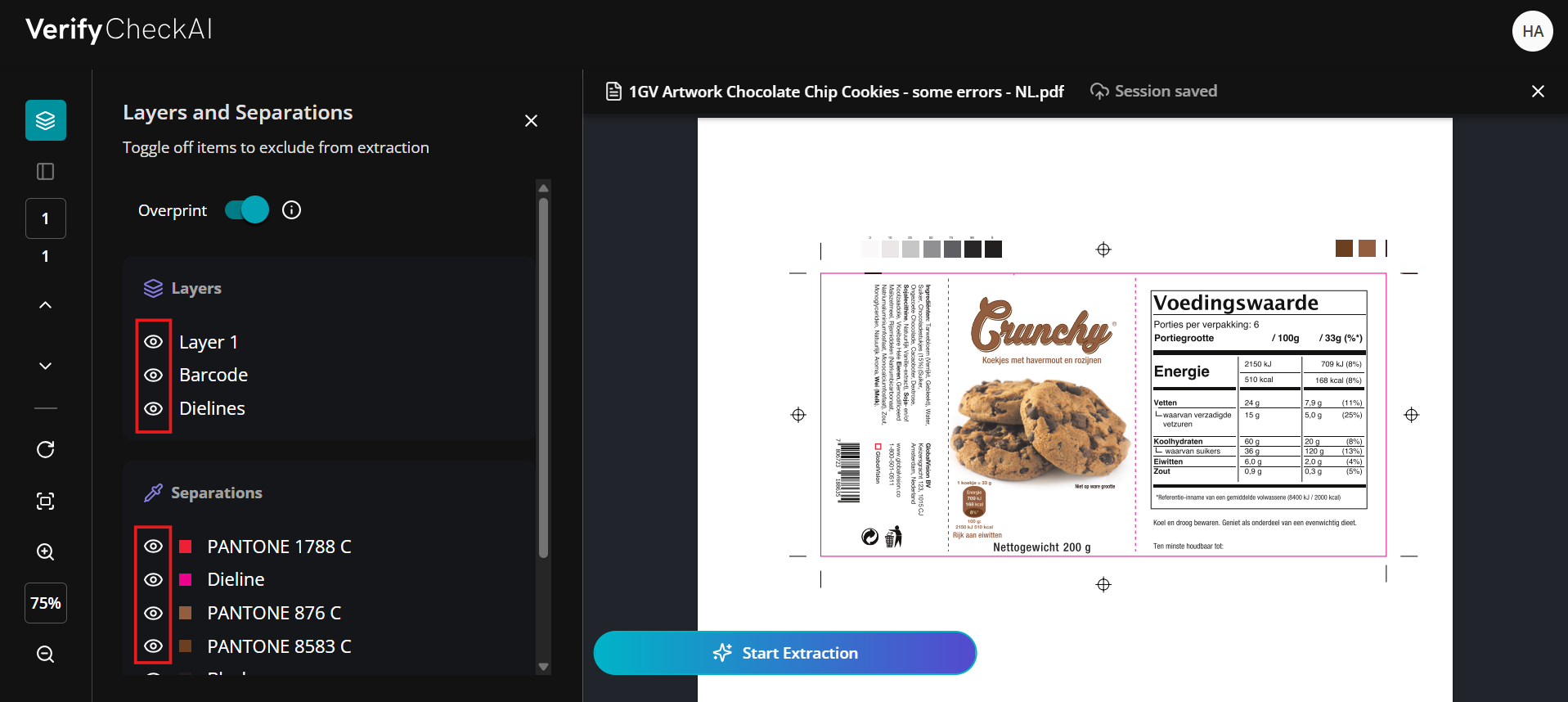
Excluding layers: If you have technical layers showing dimensions, die lines or cut lines that may not be directly relevant to a compliance review, it is recommended to turn those off so that they don’t interfere with the system’s analysis.
Click the layer visibility toggle in the layer controls to a hide irrelevant layers which are not pertinent to your inspection. These will be excluded from the compliance analysis.
2.0 - Beginning Extraction
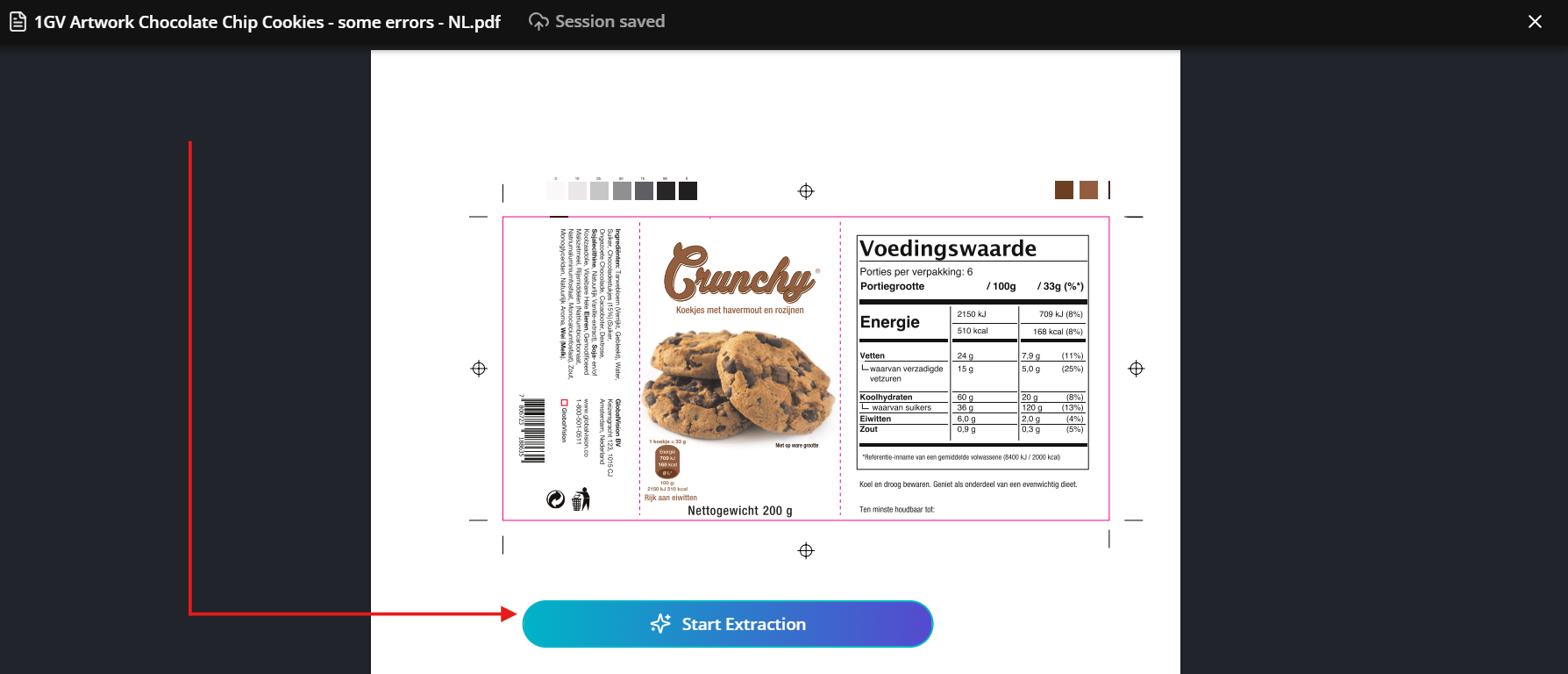
When you click Start Extraction, the system begins to understand your document by analyzing its key components and organizing the content into structured categories.
This process focuses on content elements such as text and tables, and prepares them for further review and compliance analysis.
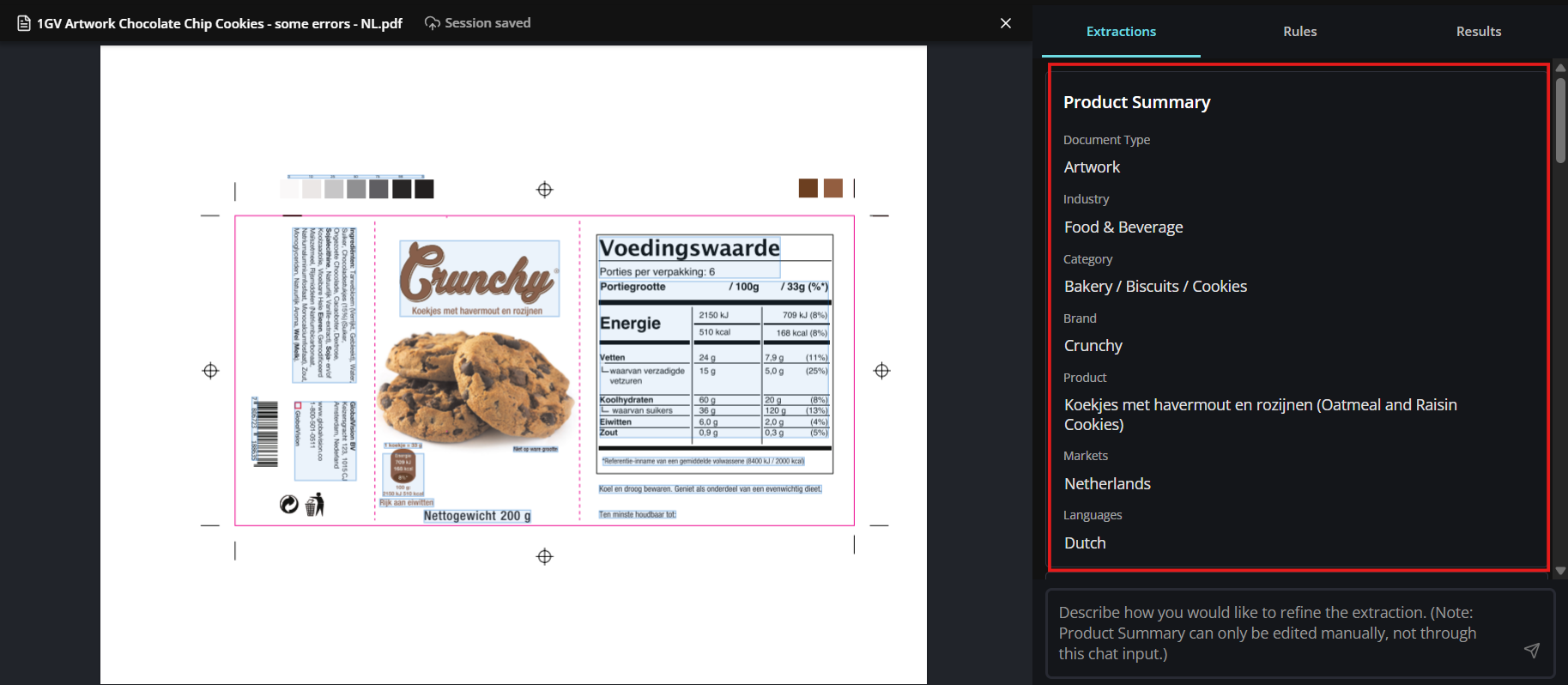
Product Summary
The system identifies the industry, brand, and target market by country.
This is editable; if the AI misidentifies the market, you can manually override it to ensure the correct regulations are applied.
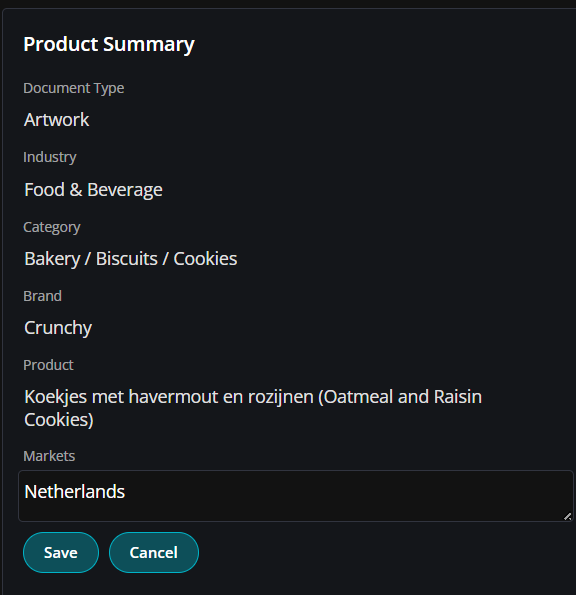
Editing Product Summary
Each field is editable so that you can change or refine the data in the Product Summary as needed.
Click on the edit icon next to a field to make and save changes.
Note: The ‘Product Summary’ information informs how the software will fetch regulatory rules.
It determines how CheckAI interprets your document and which rules are applied during analysis, therefore it’s important that the information is accurate.
Be sure to review the Product Summary and make any edits to refine the accuracy if you need to.
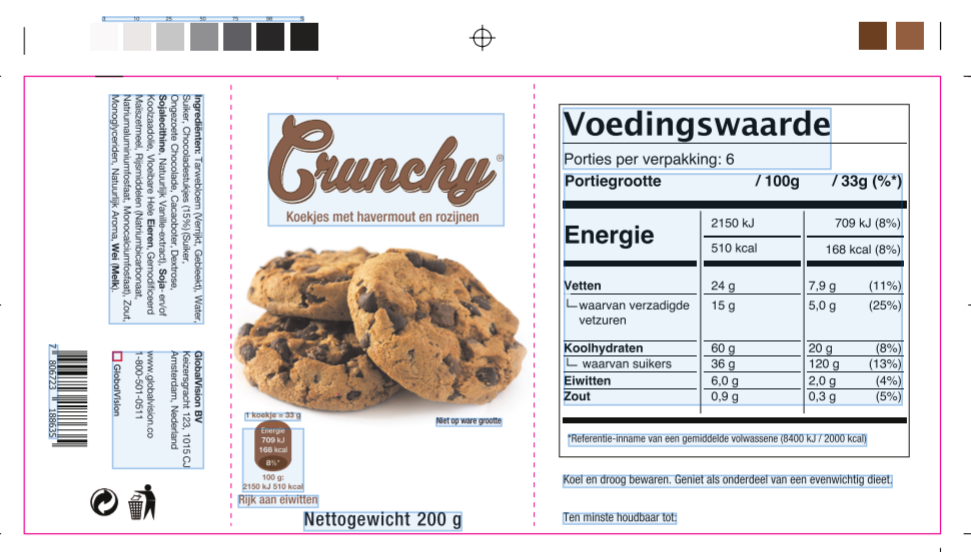
Content Extraction Panel
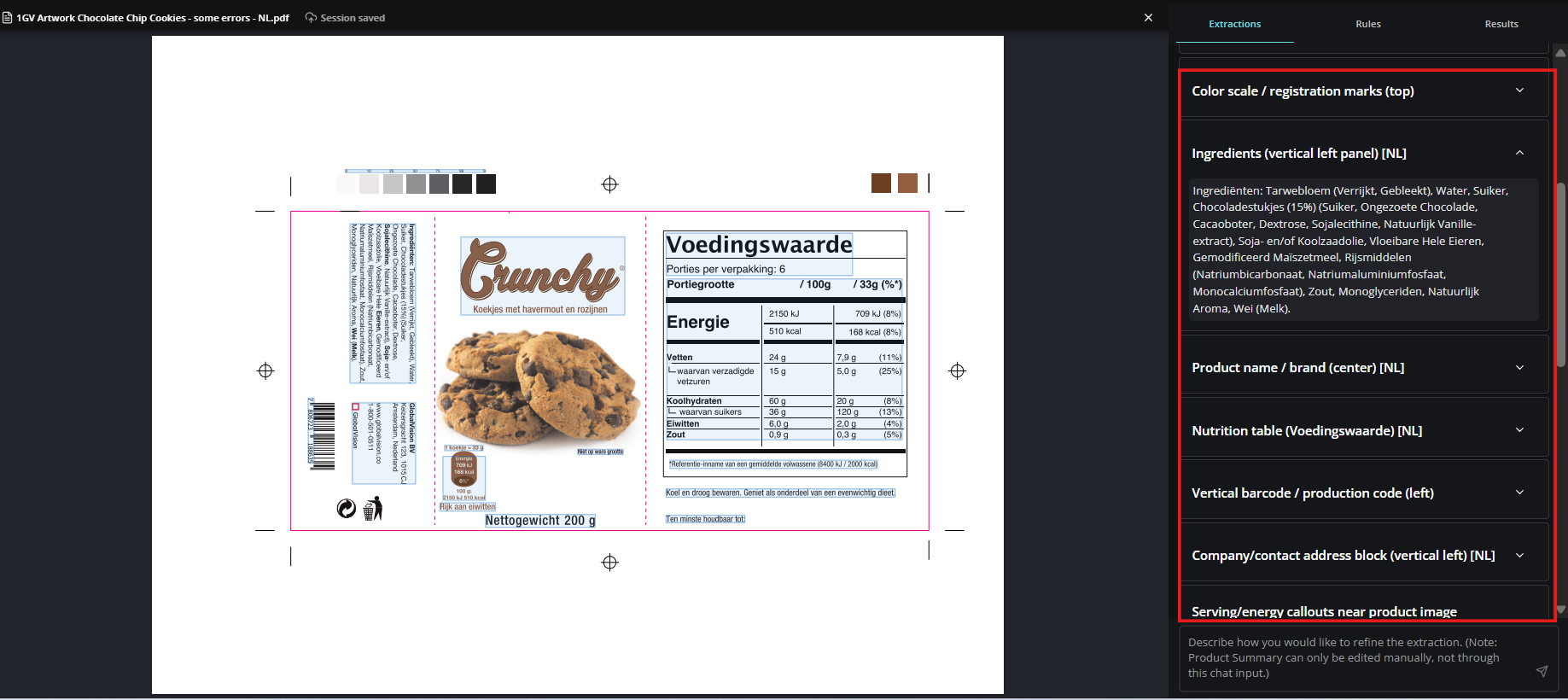
In the content section of the extraction panel, the AI "reads" the document like a human, identifying elements such as the ingredient list, nutrition facts table, and net weight quantity.
Each detected section is highlighted on your document viewer.
Each highlight points to a linked category, and all detected categories are described in the extraction panel.
Categories and their content can be edited individually or in bulk using the refine feature.
Navigating Extracted Categories
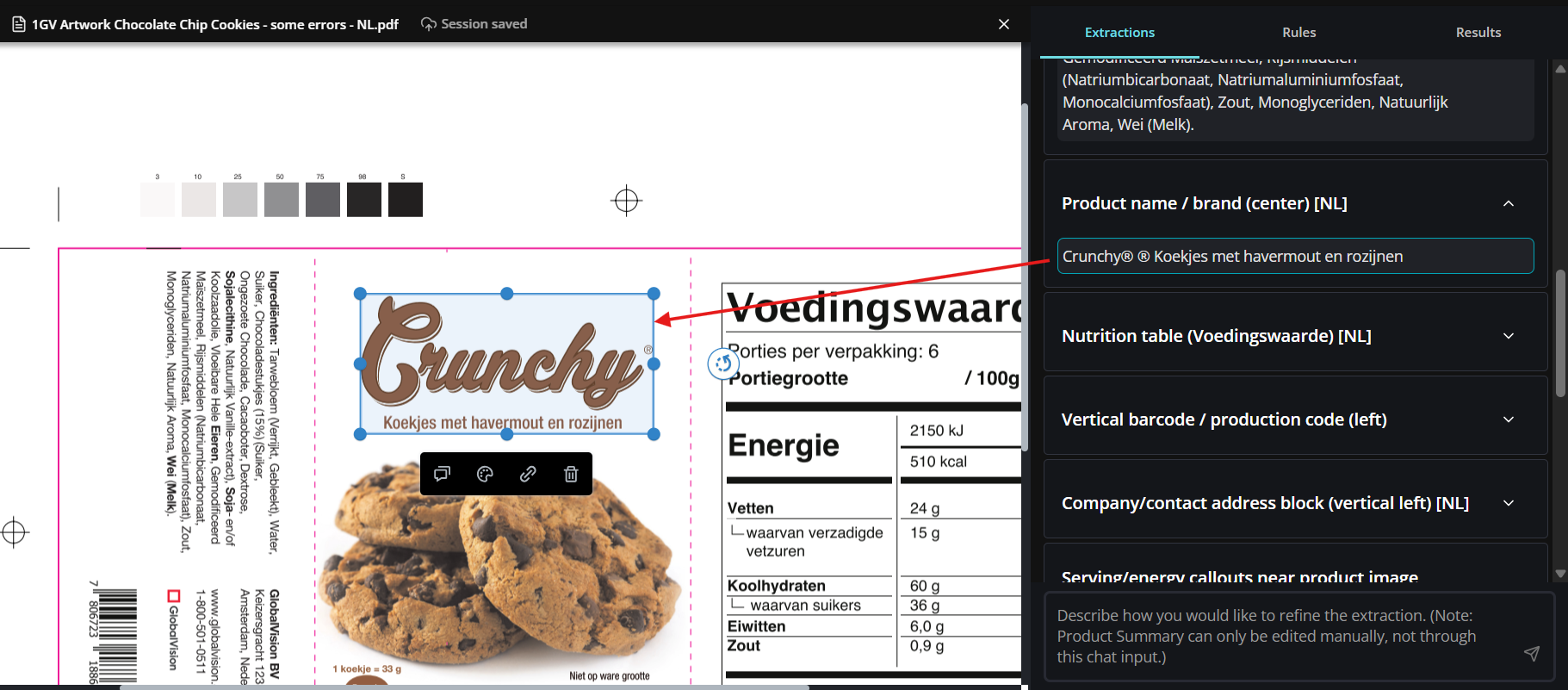
Clicking on a category on the extraction panel, or clicking on a highlighted section of your document will automatically zoom into that particular area of your file.
Refining Extraction
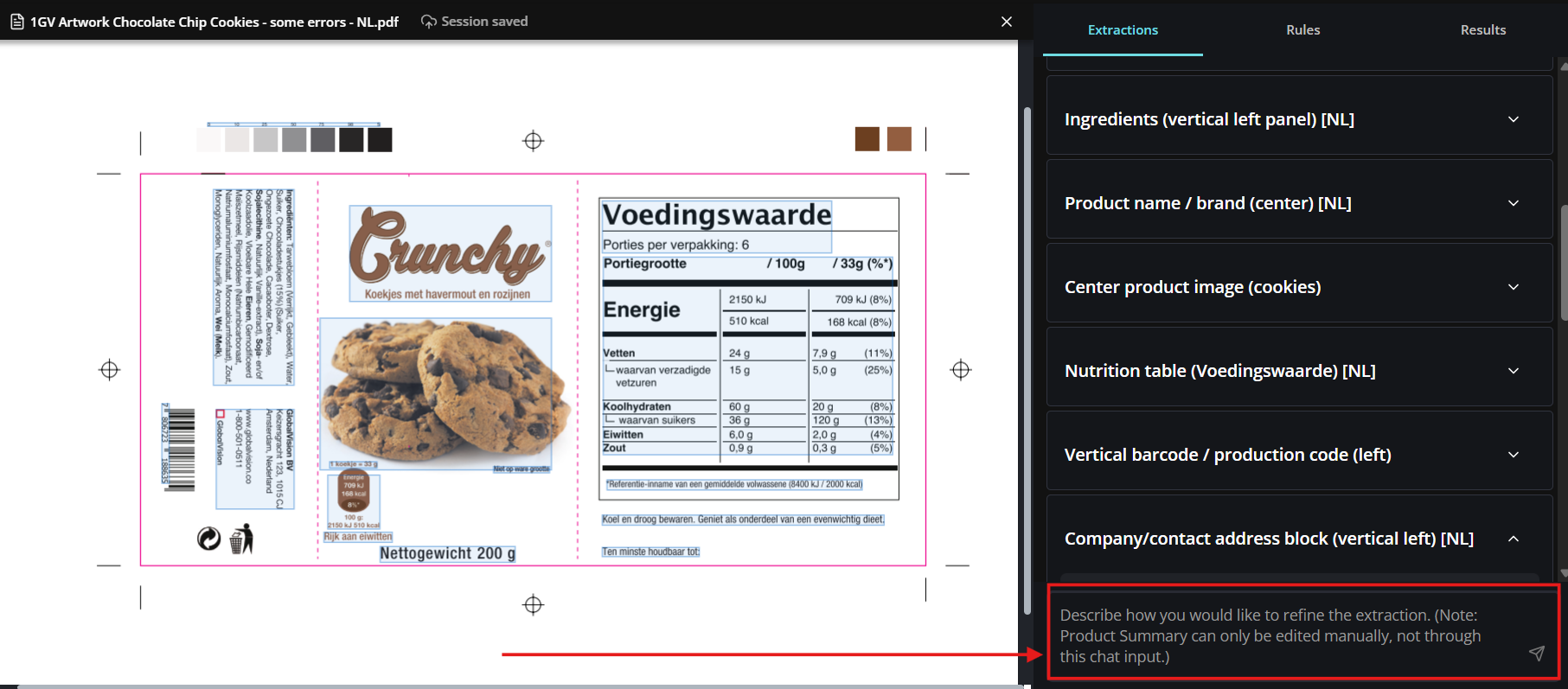
Although the ‘Product Summary’ section can only be edited manually, the content section below it can be edited both manually, or using the ‘refine’ feature.
The refine feature allows you to provide context to modify the extraction process in the content section. Use plain language and describe the way you would like to refine the content extraction.
3.0 - Rules and Rulebooks
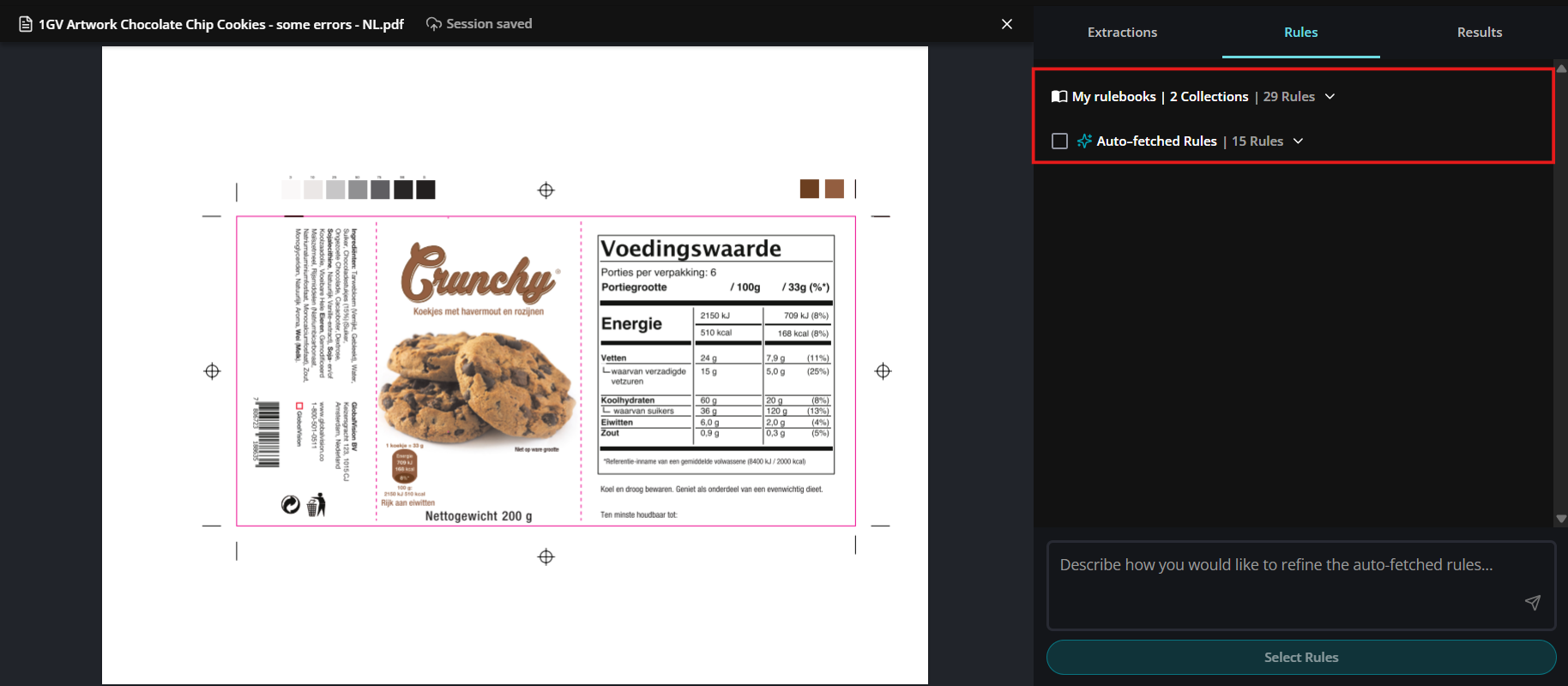
The Rulebook section is where you define the standards that CheckAI will use to evaluate your document.
You can apply automatically fetched regulations based on your Product Summary or add custom rules to reflect internal guidelines or specific retailer requirements.
What is a rule in Verify CheckAI?
A rule is essentially a condition that must be met—based on either regulatory standards or internal criteria—and is applied to the extracted content to identify whether it passes, fails, or requires further input.
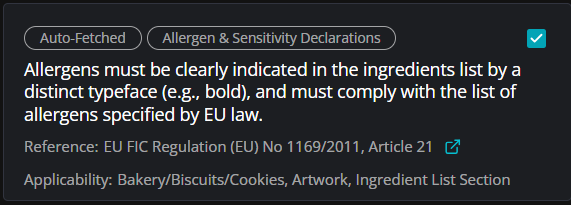
This distinction can be bold, underlined, italic etc…)
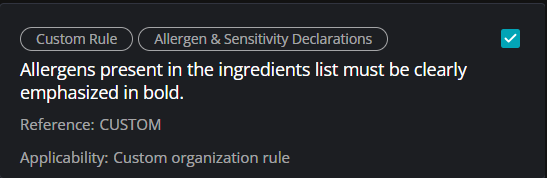
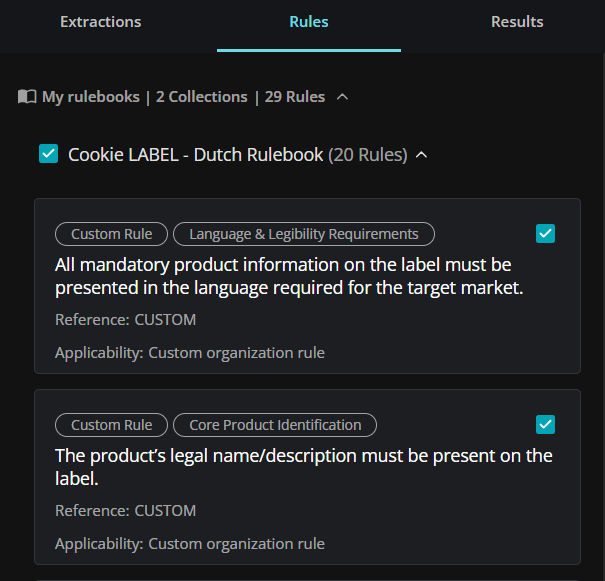
My Rulebooks (Custom Rules)
A Custom Rulebook allows you to define your own compliance criteria based on internal standards, brand guidelines, or specific retailer requirements. You can create rules in natural language or import them from existing documents, giving you flexibility to tailor the analysis to your exact needs.
To learn more on how to create custom rulebooks - refer to the Custom Rulebooks Management sections.
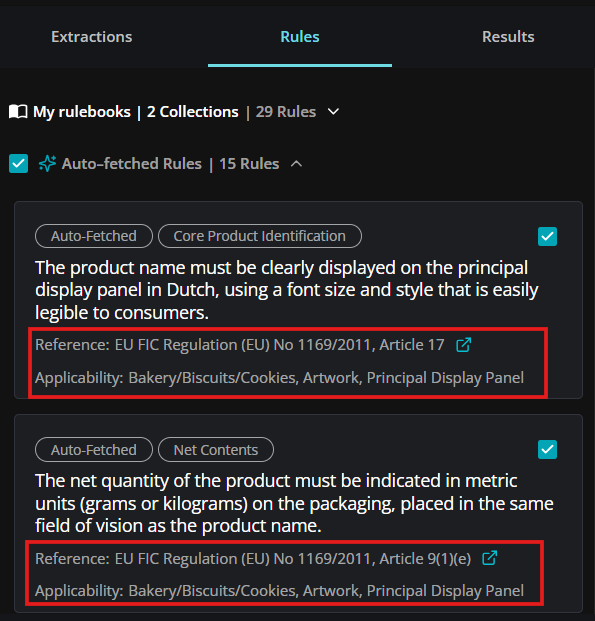
Auto-Fetched Rules
Auto-Fetched Rules are a curated set of the 15 most relevant compliance checks generated based on your Product Summary—especially the selected target market.
Using insights from the extraction phase, CheckAI identifies applicable regulations and pulls rules directly from authoritative regulatory bodies (such as FDA or regional equivalents).
Each rule includes a clickable citation link, allowing you to trace it back to its original source for full transparency and verification.
Selecting Rules
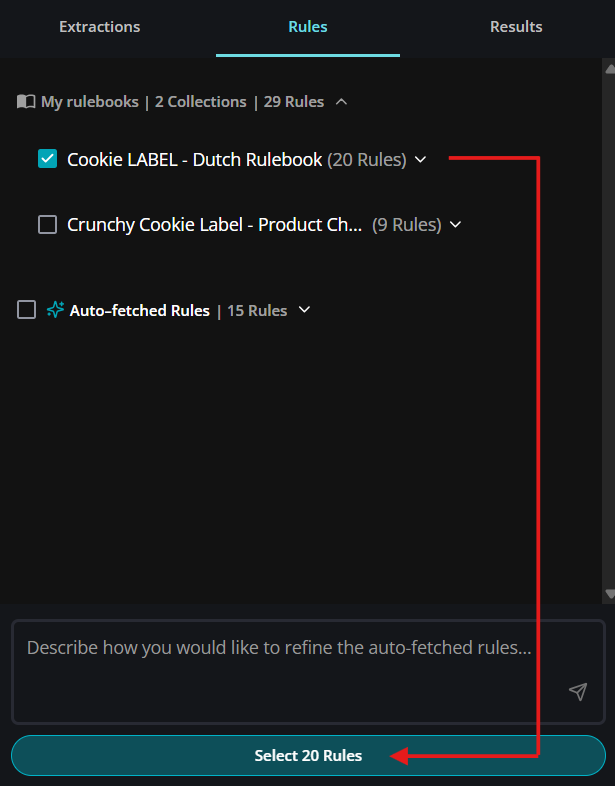
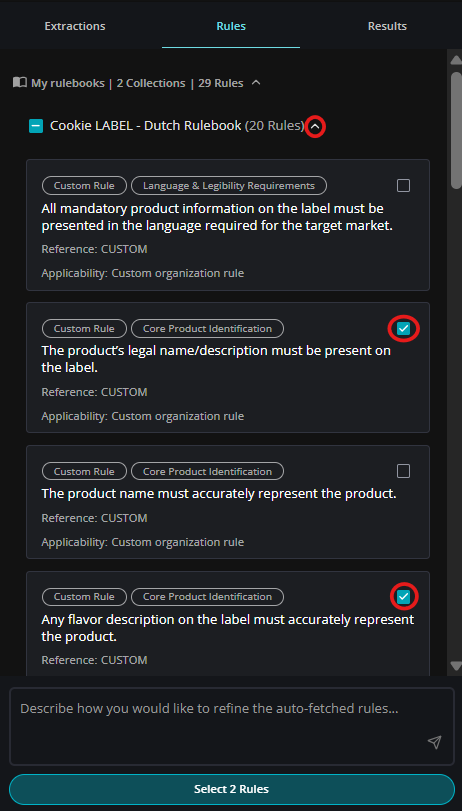
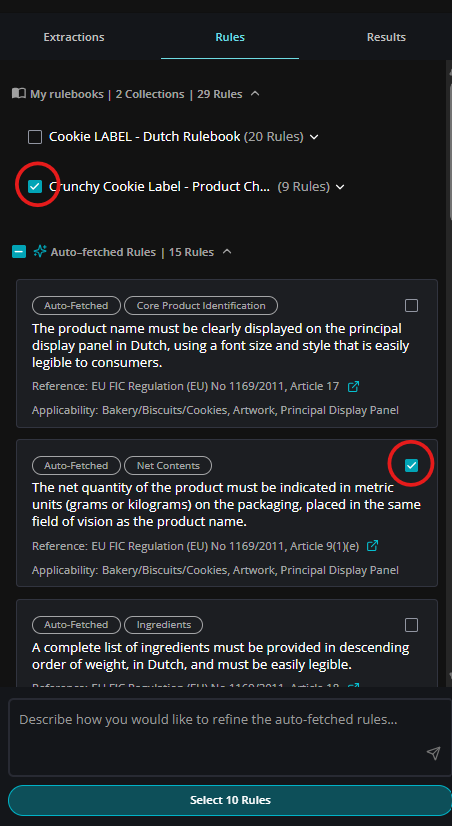
By selecting a rule or rulebook after the extraction phase, you are telling the system which ruleset to use when analyzing your document for compliance.
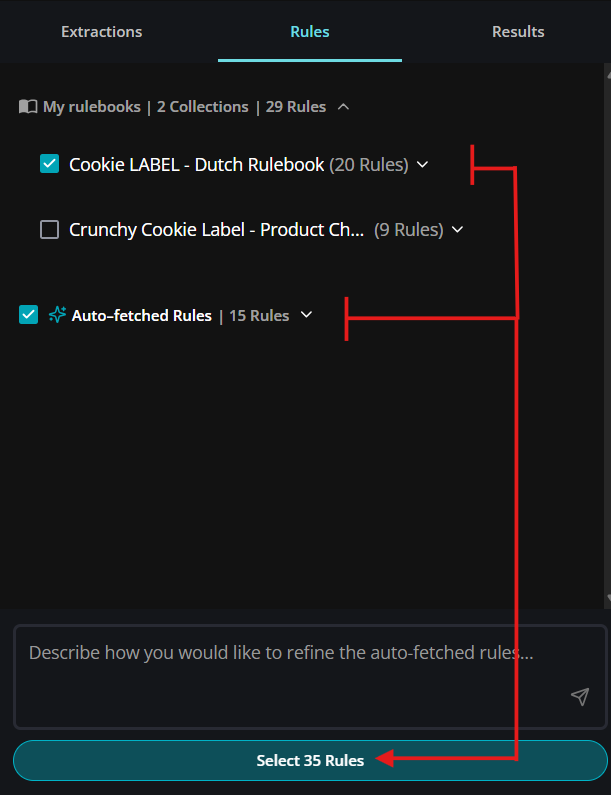
There is flexibility in how you can select and combine selections of rules to apply to your compliance check.
Selecting entire rulebooks vs Individual rules
Combining Rules and Rulebooks
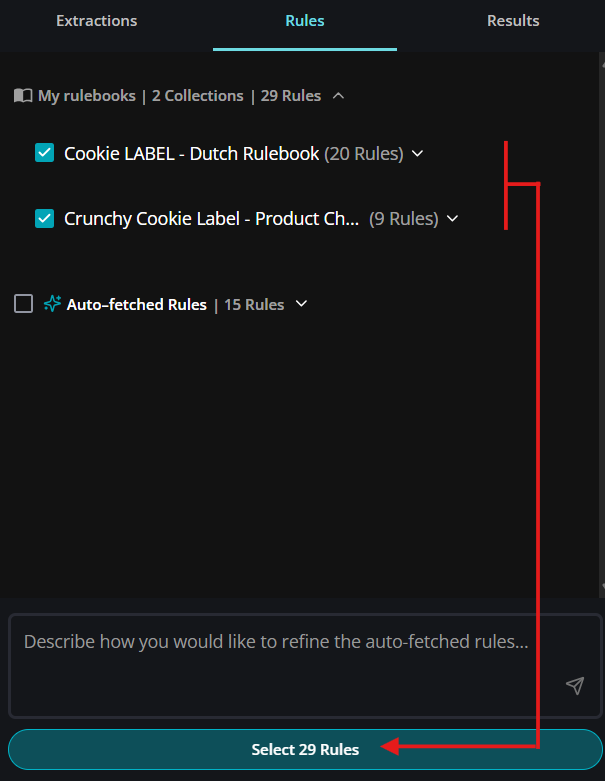
For example, a general guideline that applies to all products, and a specific rulebook that applies to a particular product line.
4.0 - Compliance Analysis Results
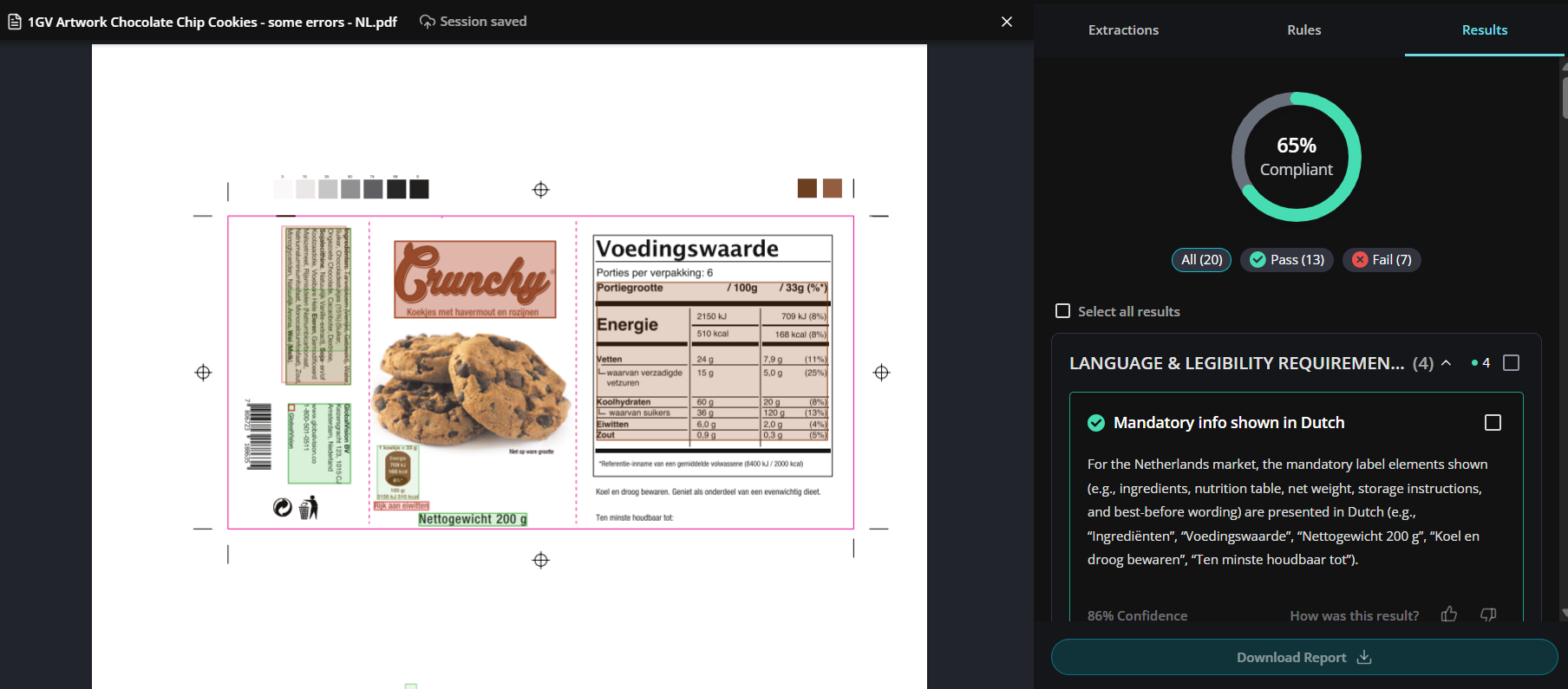
The compliance analysis phase is where CheckAI evaluates your document against the selected rules.
Using the extracted content, the system checks each element for alignment with regulatory requirements and internal guidelines, identifying any violations, inconsistencies, or missing information.
Results are then categorized into three clear outcomes: Pass, Fail, or Needs Input - along with an overall score to help you quickly understand the document’s compliance level.
Reviewing Results
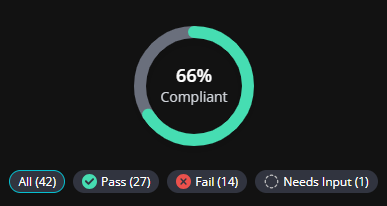
Results are organized into three categories to help you quickly assess compliance.
You can easily filter your results by selecting any of these categories in the results panel, allowing you to focus on the areas that need the most attention.
-
Pass: indicates that the content meets the conditions of the rule with no issues identified.
-
Fail: means a potential violation or inconsistency has been detected and needs to be addressed.
-
Needs Input: Applies when the system requires additional information or manual validation to complete the assessment.
Compliance Score
The compliance score is based on the ratio of passed checks to the total checks.
For example, 27 passed checks out of 41 total checks is a 65% compliance score.
(If you select pass on the 1 remaining check that is labeled ‘needs input’ the score will go up, or if you fail that check, the score will go down)
Viewing A Specific Result
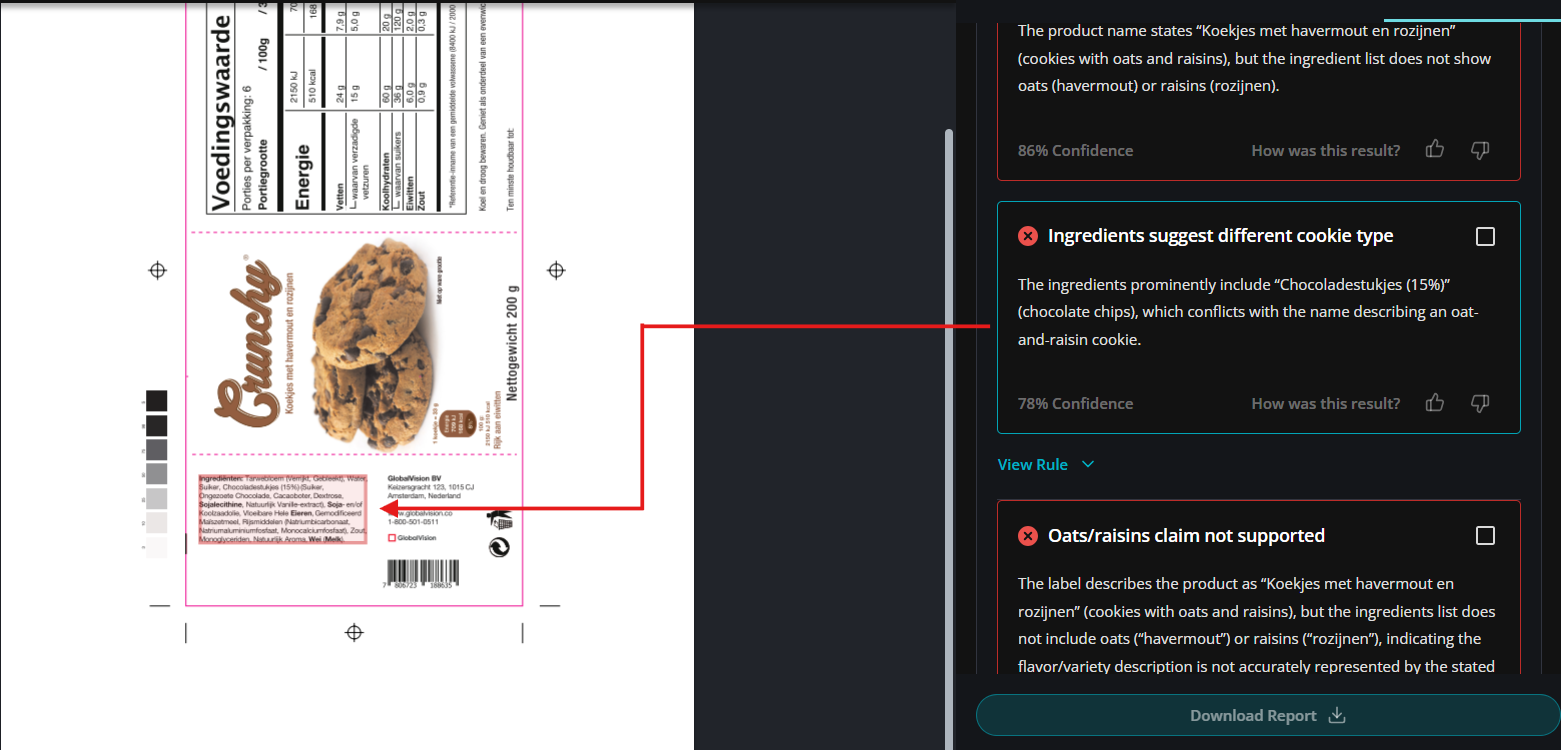
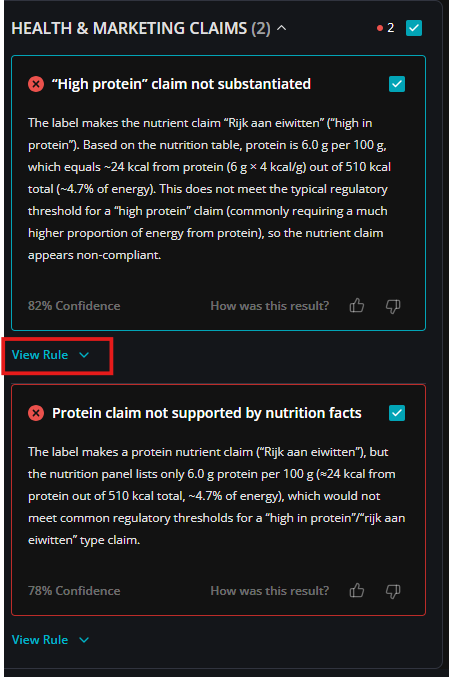
Clicking on a specific result focuses your view on that rule and highlights the exact area of the document it applies to. The UI uses color-coded highlights to make it easy to identify and understand each outcome at a glance.
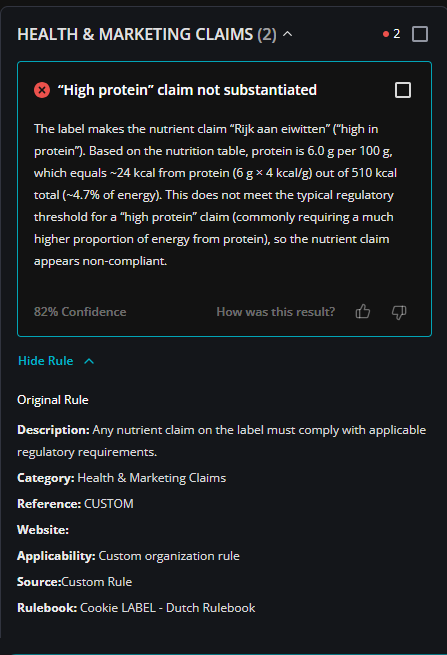
View Rule
Each result is tied to a specific rule used in the analysis. By clicking View Rule, you can expand and see the exact rule from your rulebook along with its references. T
his gives you clear visibility into what standard is being applied, helping you understand why a result was marked as Pass, Fail, or Needs Input.
Reporting Results
Reporting is designed to give you full control over what gets shared.
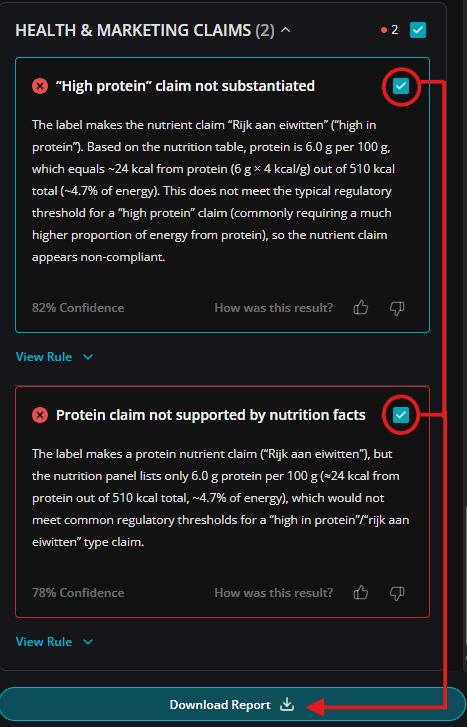
By default, no results are automatically included in the report. This ensures a human-in-the-loop approach where you decide what’s relevant.
As you review the outcomes, you can select specific results using checkboxes, whether that’s all items, only Pass or Fail results, or a custom selection.
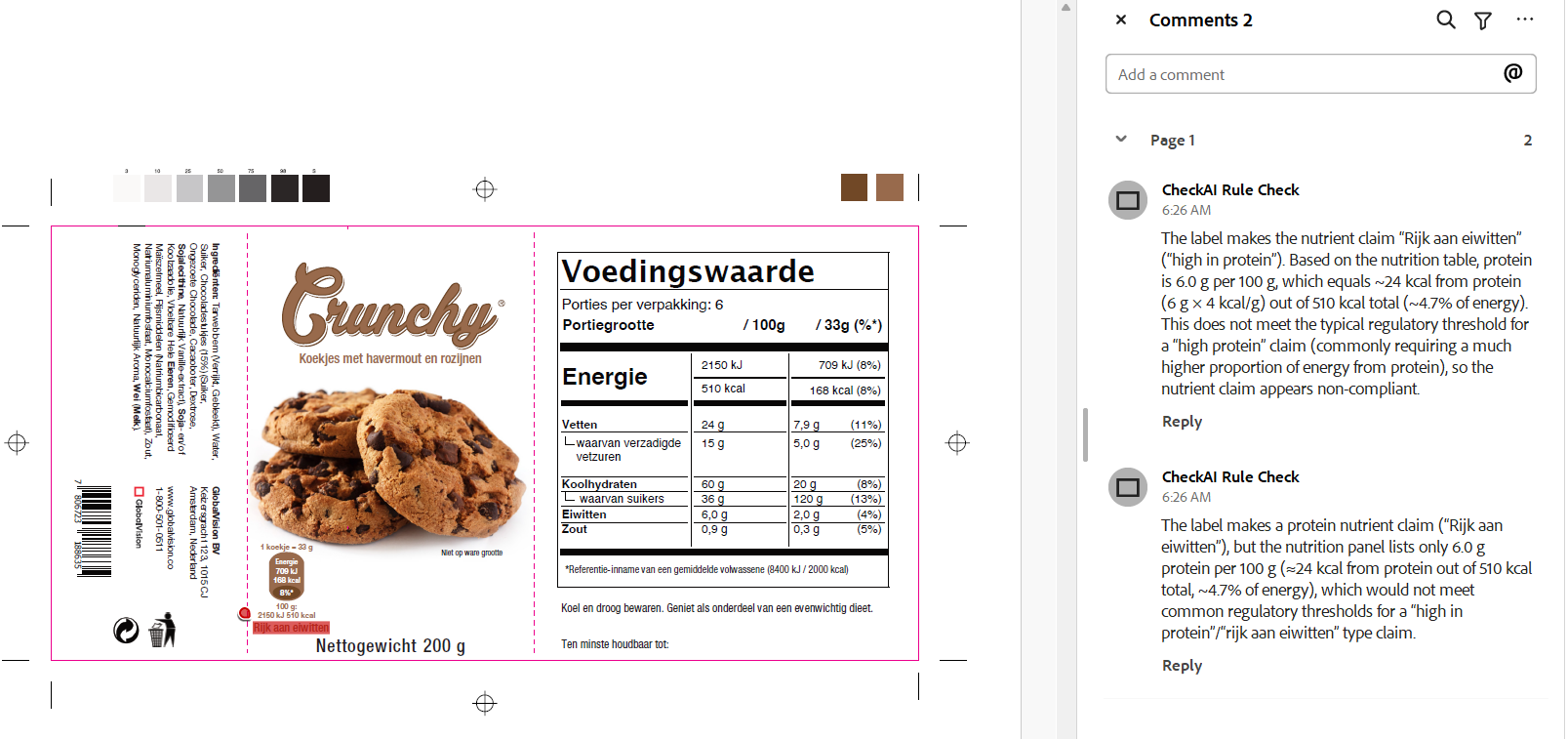
Once selected, you can generate an annotated PDF report that includes those chosen items, making it easy to share targeted insights with team members or move forward through your approval workflows.
5.0 - Custom Rules Management
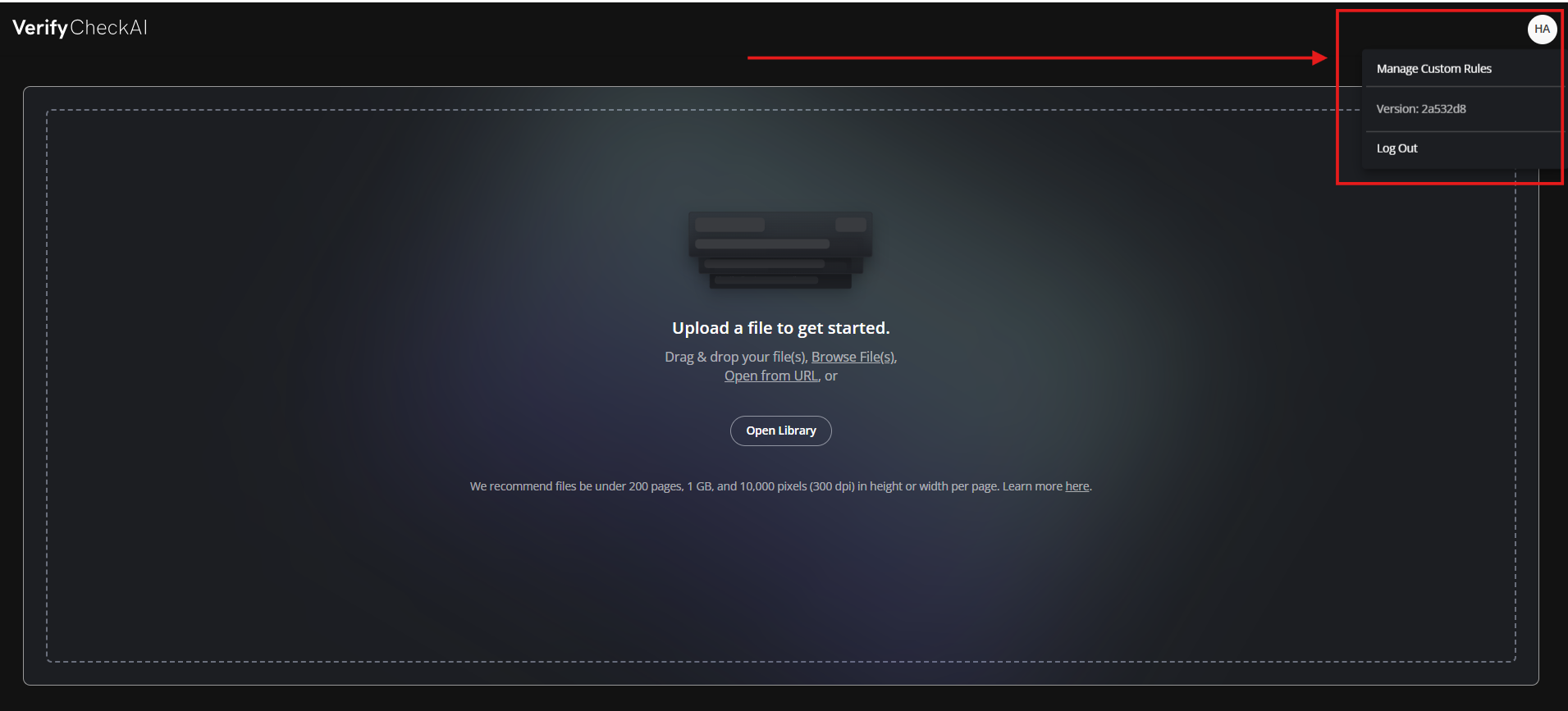
You can access Custom Rule Management directly from the home screen by clicking on your profile icon and selecting Manage Custom Rules.
This will take you to a centralized area where all your rulebooks are stored and managed.
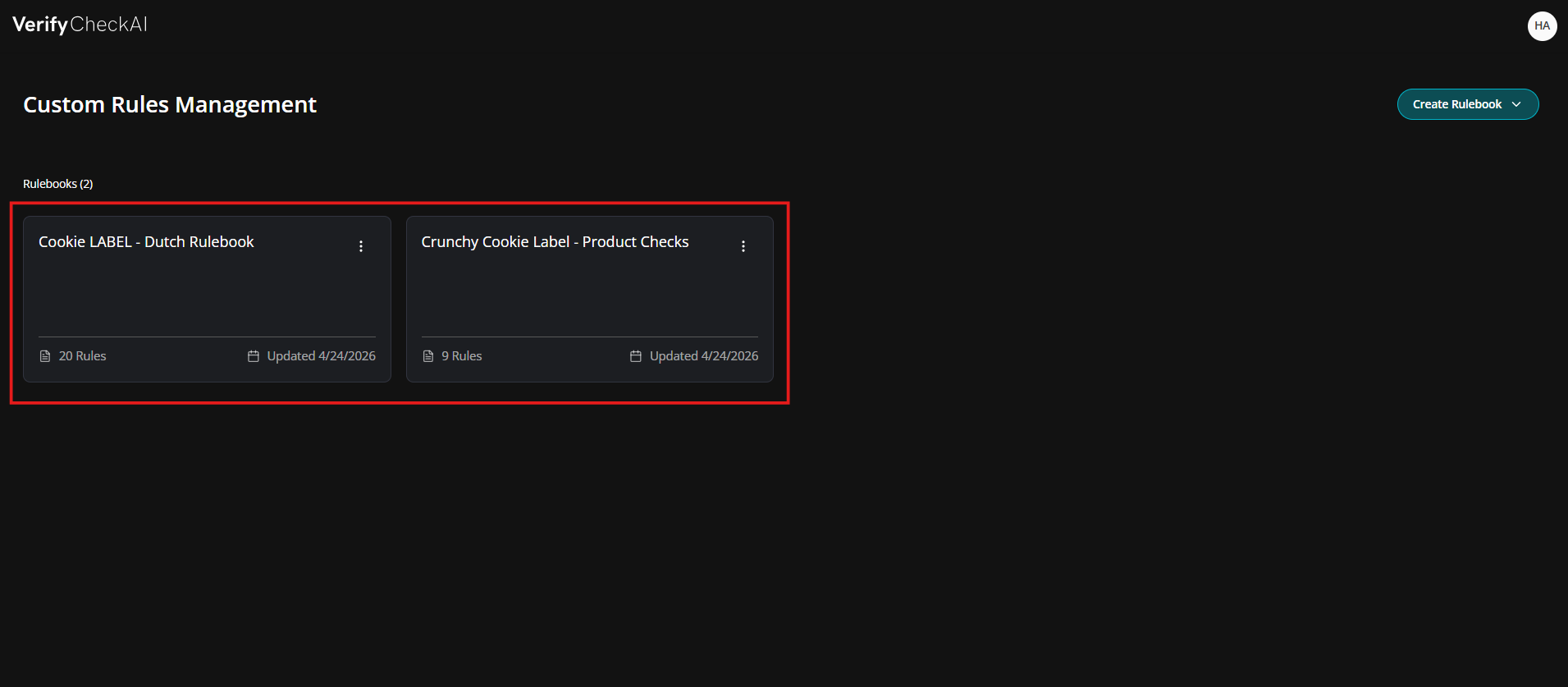
Custom Rules Management
The Custom Rule Management section contains all of your saved rulebooks in one place. From here, you can create, review, and edit your rule sets to ensure they stay aligned with your internal standards and compliance needs.
Managing Individual Rulebooks
Within each rulebook, you can access additional options to manage its contents.
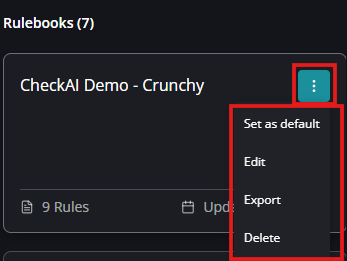
Set as default: to set the selected rulebook as the default rule set. It will be selected by default for all your checks.
Edit: to modify or update individual rules within the selected rulebook.
Export: to generate a JSON file for sharing across teams or with support.
Delete: to remove the rulebook if it is no longer needed.
Creating Rulebooks
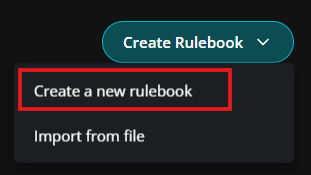
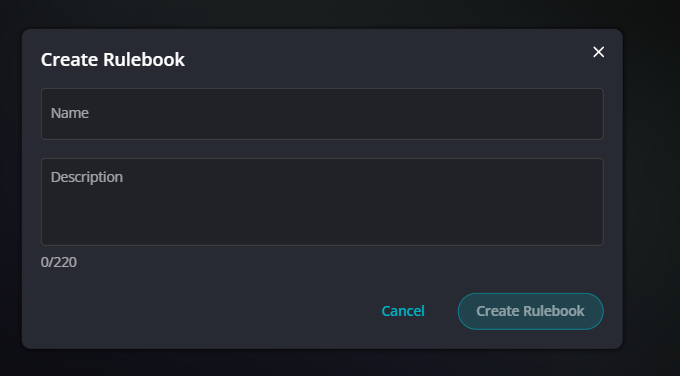
Rulebooks can be created manually by creating rules as a user.
More effectively, rulesets can be automatically created for you by uploading your guidelines and documentation to Verify CheckAI.
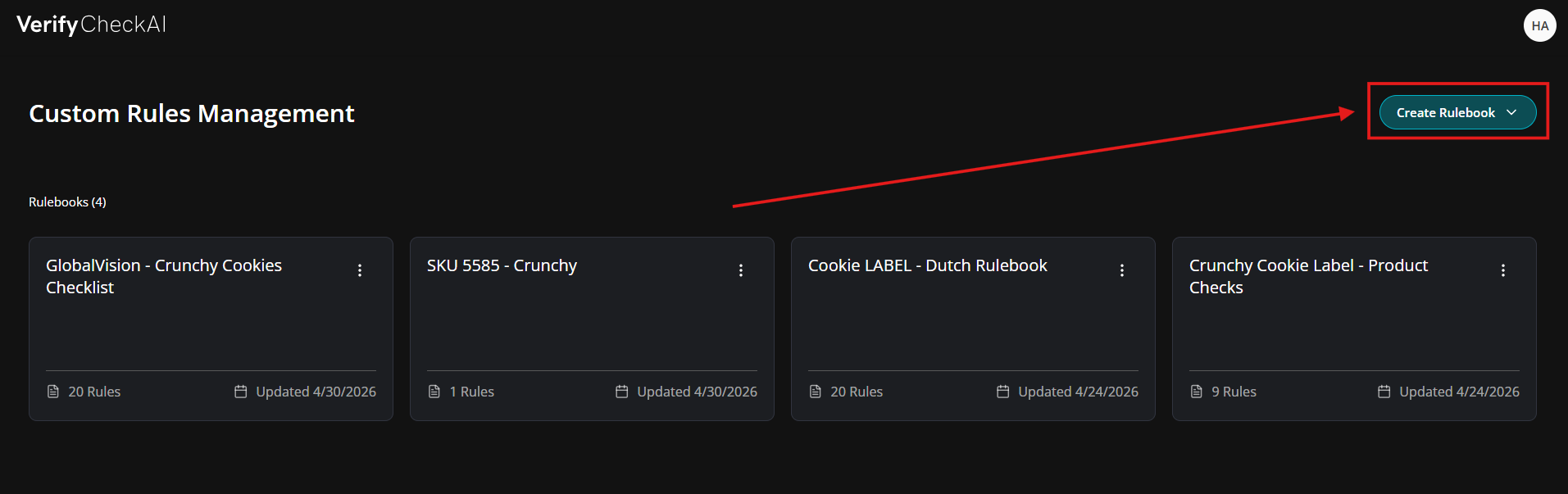
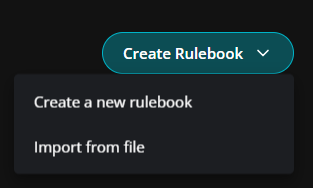
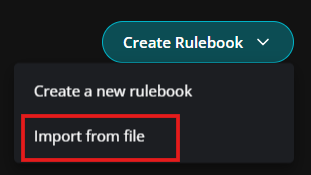
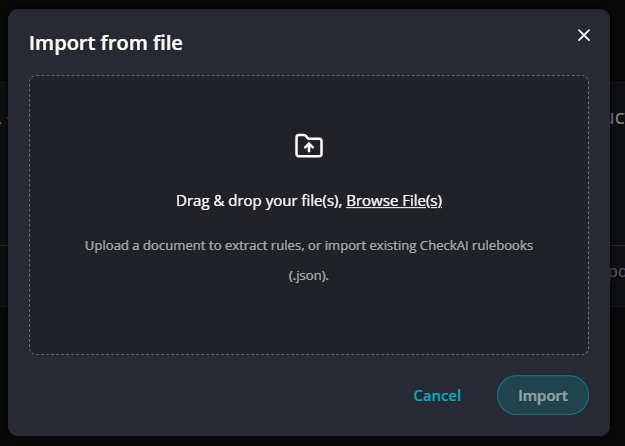
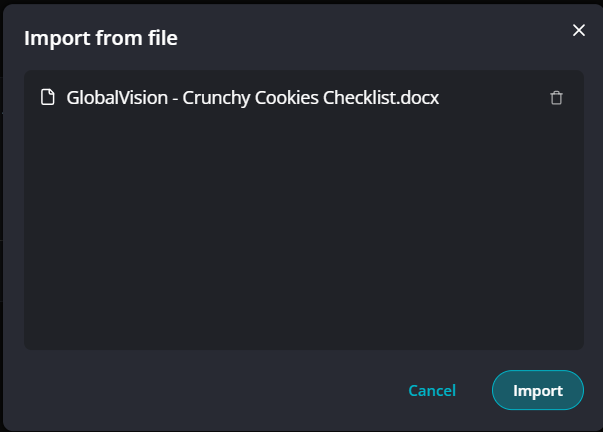
You can start by uploading your existing files—such as checklists, PowerPoint guidelines, or Excel sheets—to automatically generate a rulebook. CheckAI will extract and structure rules from these materials, giving you a strong starting point. From there, you can manually refine, edit, and clean up the rules to ensure the final rulebook meets your exact compliance needs.
Automatic Rulebook Creation - Importing Rulebooks
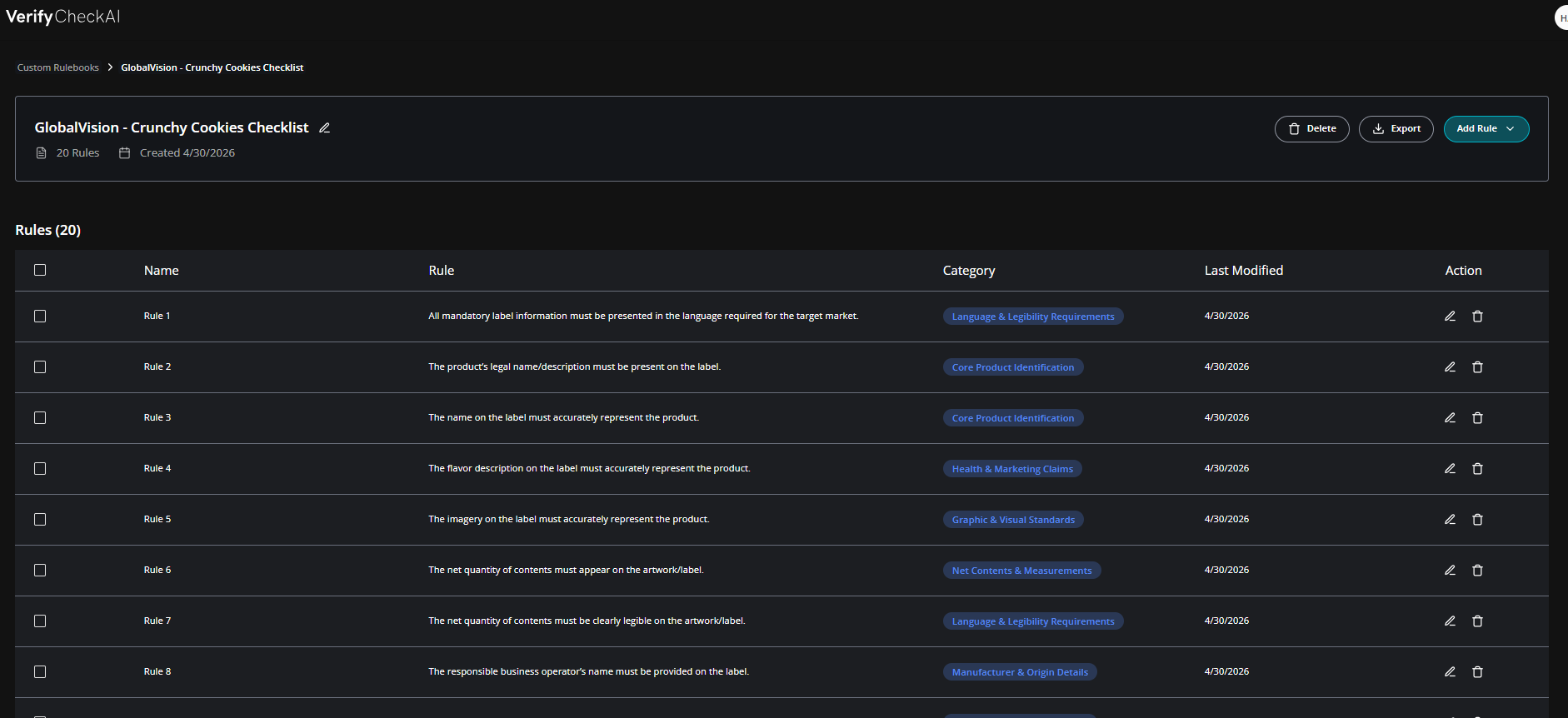
Rules can be automatically generated from your existing guidelines and documentation. Whether your standards are stored in Word documents, PDFs, PowerPoint files, checklists, or other supported formats, you can upload them directly into CheckAI.
The system will interpret the content, extract relevant requirements, and organize them into structured rules within a rulebook.
Document Requirements
Your source documents do not need to follow a strict format. As a general rule, if a person can read and reasonably understand the content, CheckAI can as well.
There’s no need for special structuring or formatting, making this a fast and efficient way to build rule sets from existing materials.
Reviewing and Editing Imported Rules
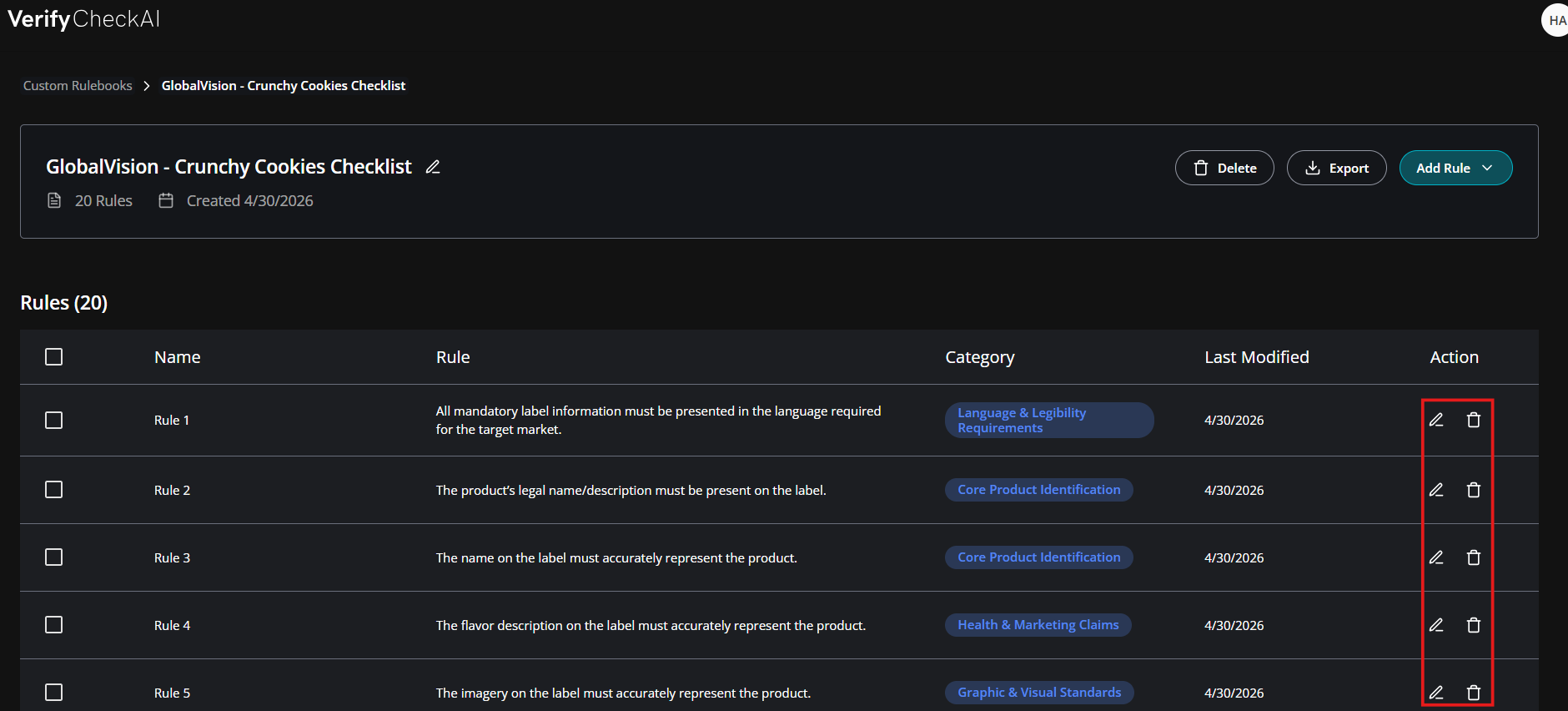
Once your rules are created, you can review and refine them as needed.
This includes editing rule content, removing unnecessary rules, or reorganizing them to better fit your needs. This step ensures your final rulebook is accurate, relevant, and aligned with your compliance standards.
Manual Rulebook Creation
When creating a rulebook manually, you can assign a name and description to help organize it by use case, product type, or compliance requirement.
Adding Rules
After a rulebook is created, you start adding rules by selecting Add Rule.
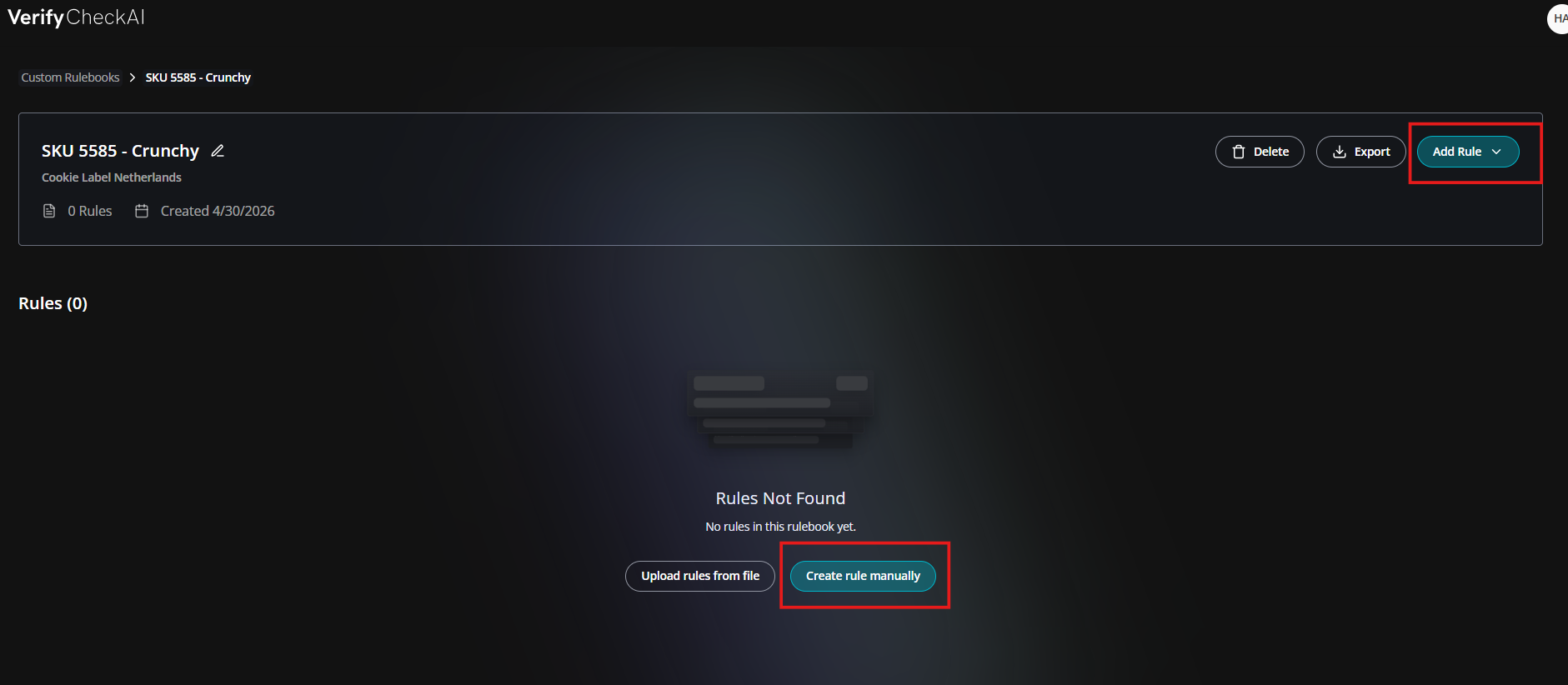
Each rule may include a name, a category section, along with the rule content and additional guidance
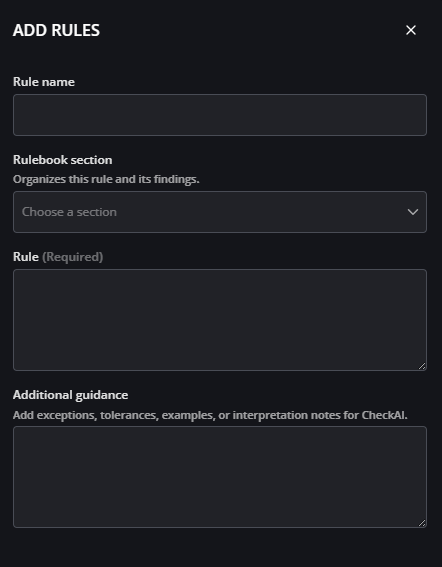
The rule content is the key component, as it defines how the AI evaluates compliance. Rules should be written in clear, natural language, similar to prompts used in AI systems.
The additional guidance section can provide be used to add exceptions, tolerances, examples, or interpretation notes for CheckAI.
Creating good rules will help improve your compliance workflows - refer to our best practices guide for tips on how to create good rules.
To make changes, select Edit on any rule. This allows you to update the title, category, or rule content as needed.

6.0 Using Reference Files
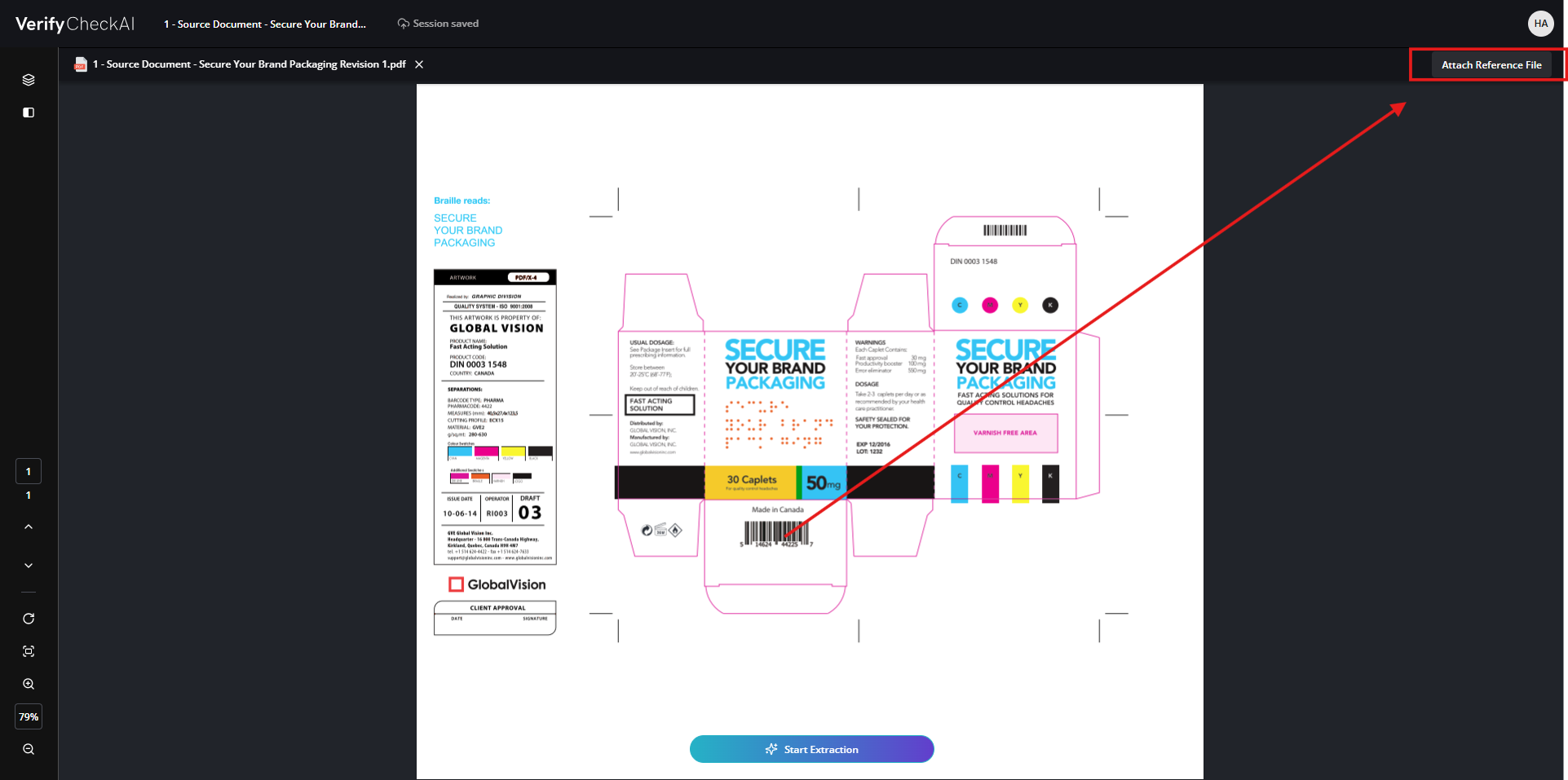
When uploading a document for analysis, you can attach a Reference File to provide additional context for that specific inspection. This secondary file can contain supporting information that may be relevant to the document being reviewed.
For example, the original artwork brief, a list of approved claims, or another source document containing requirements or approved content.
Note that attaching a Reference File does not automatically cause CheckAI to compare against it. The file is only used when a selected rule specifically instructs CheckAI to reference or validate against that file.
To use this feature effectively, attach the supporting document and make sure the applicable rules clearly indicate that the Reference File should be considered during the analysis.
Rule Examples
-
“Make sure that any claims found on this artwork match the attached reference file with the list of approved claims.”
-
“Make sure that the net weight quantity and the ingredient list matches the data on the attached brief document.”
7.0 Context Library
Element Library
Elements
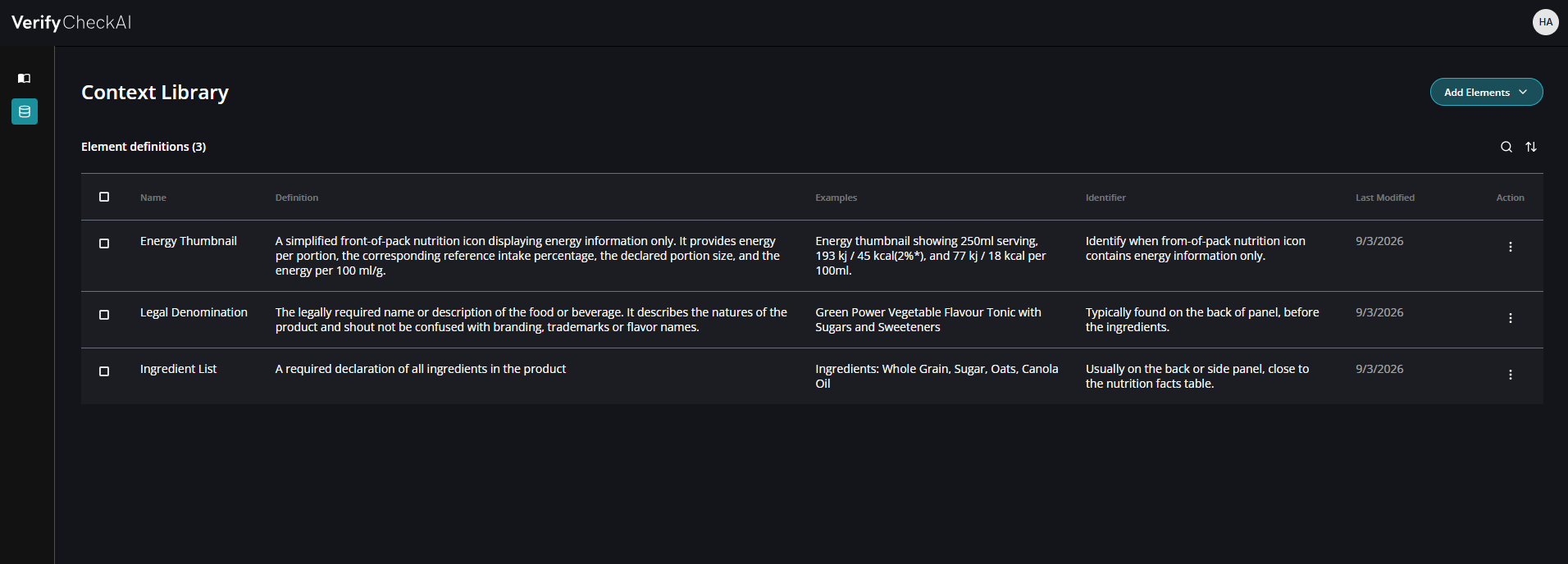
The Element Library provides permanent, organization-wide context that CheckAI can use across inspections. Unlike a Reference File, which provides temporary context for a single inspection, elements are saved at the tenant level and help CheckAI consistently understand organization-specific terminology, concepts, and definitions.
You can think of the Element Library as a shared glossary for your organization. It gives subject matter experts a place to define important terms such as legal denomination, claim, reference intake, or internal abbreviations. It specifies exactly how those concepts should be interpreted.
CheckAI can use this context during extraction, as well as when applying rules during the compliance analysis.
For example, you may have a rule that says, “Verify that a clear legal denomination describing the nature of the product is present.” Without an element definition, you may also need to add additional instructions to every related rule explaining what should and should not be treated as a legal denomination.
By defining Legal Denomination once in the Element Library, you can provide that context centrally and keep individual rules shorter, clearer, and more consistent.
Creating an Element
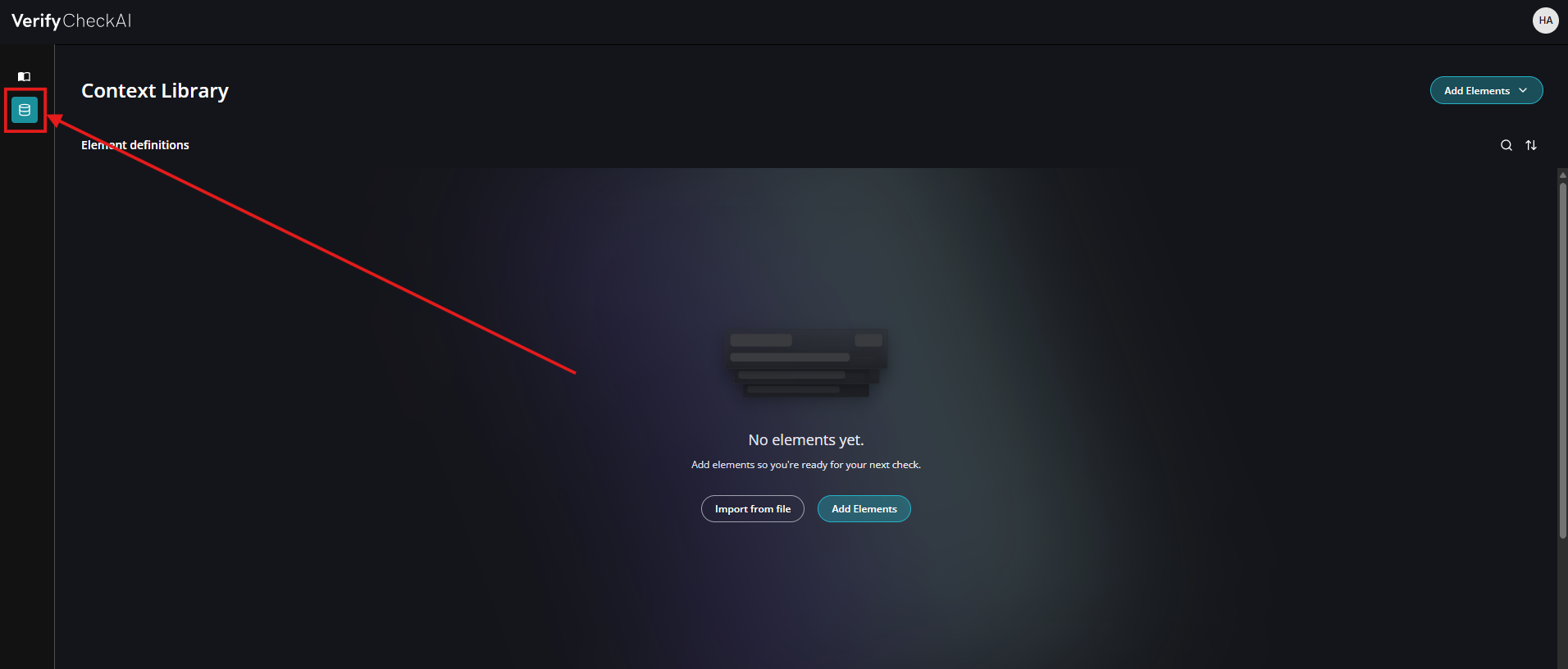
From the Manage Custom Rules page, click on the Context Library icon.
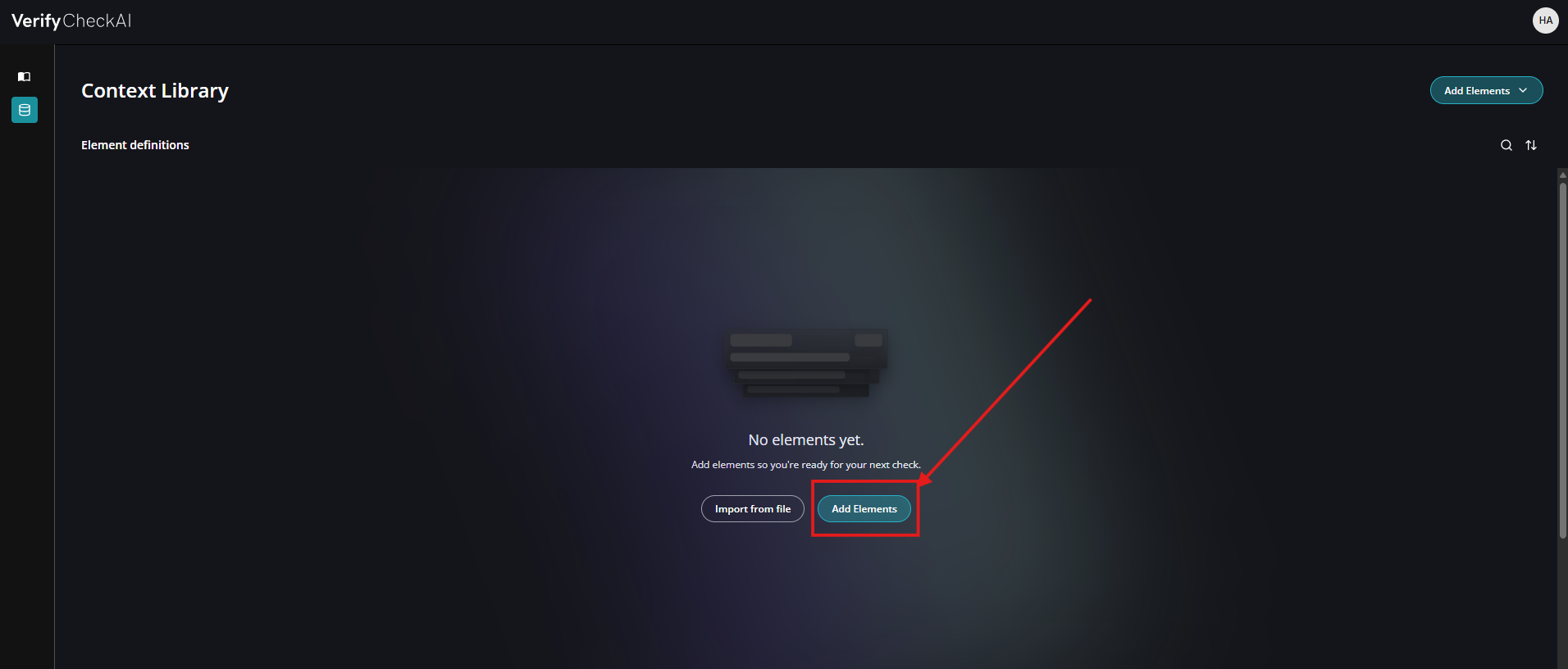
Click Add Elements to add a new term to your library.
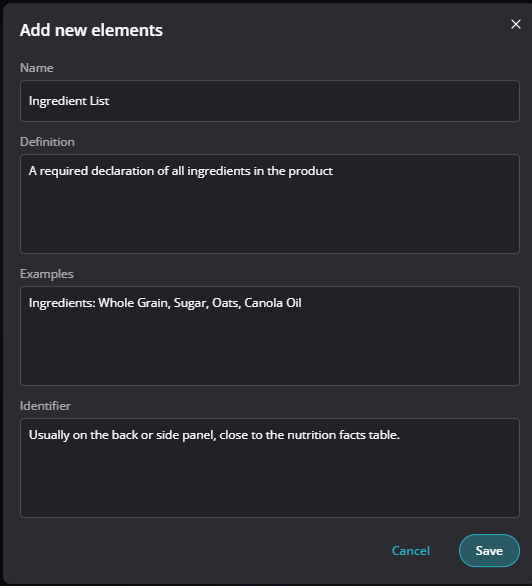
Each element applies across your organization and can contain the following information:
-
Name: The term or concept you want CheckAI to understand, such as Legal Denomination.
-
Definition: A natural-language explanation of what the element means and how it should be interpreted.
-
Examples: Examples that help clarify what should be recognized as that element.
-
Identifier: Additional guidance that helps identify the element, such as where it is typically located or how it commonly appears on an artwork.
Over time, you can build an Element Library containing the terminology and definitions that are most important to your organization. This creates a consistent source of context that can be reused across rulebooks and inspections, while allowing regulatory and subject matter experts to maintain those definitions in one centralized location.
Note: The Element Library is not a Content Matching System
The Element Library is not a traditional content management or exact-match system that simply compares artwork against a predefined set of approved text and returns a match or mismatch. Instead, it provides contextual knowledge that helps CheckAI interpret what specific terms and concepts mean within your organization.
It is closer to providing reusable AI context, similar to retrieval-augmented generation (RAG), so the system can apply those definitions intelligently during extraction, categorization, and rule evaluation rather than relying on simple text matching.