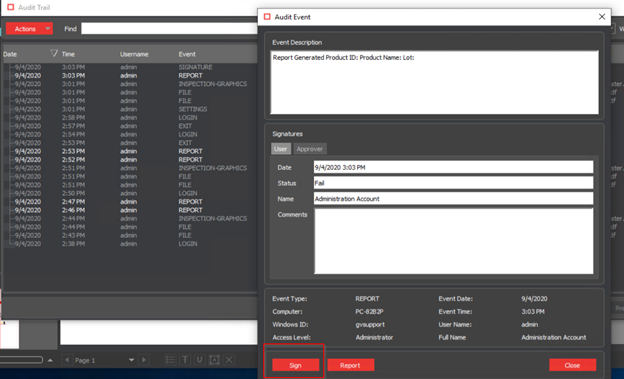
Problem: How to approve a report in GVD Versions 5.3 and higher
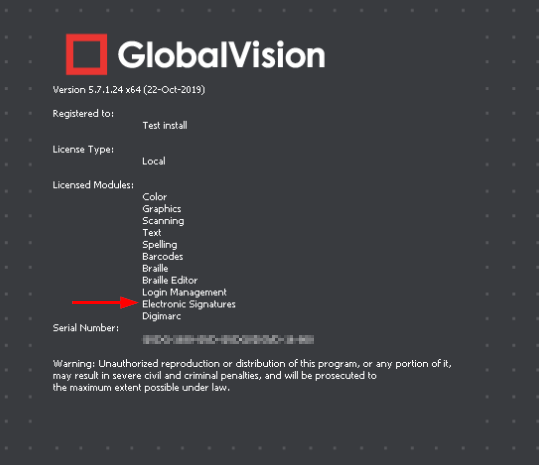
Solution: First make sure that the Electronic-Signature module is enabled, refer to the screenshot below:
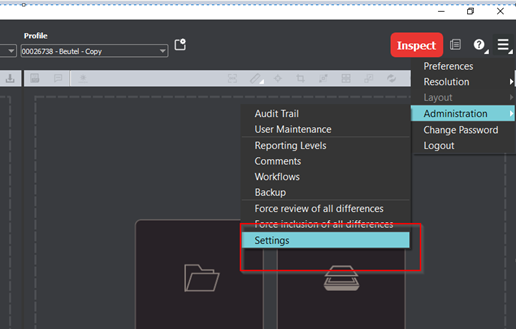
Login to GVD as an administrator, go to settings as seen below:
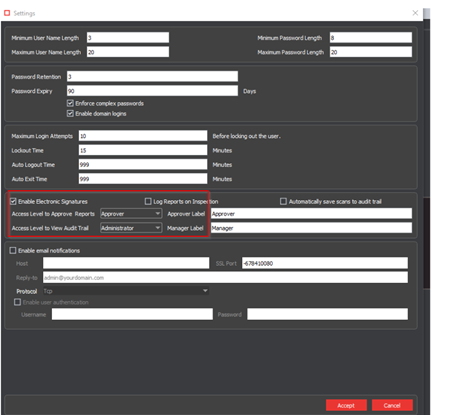
Put a checkmark on “Enable Electronic Signature” and Access Level to Approve reports is set to Approver and seen below and click on Accept.
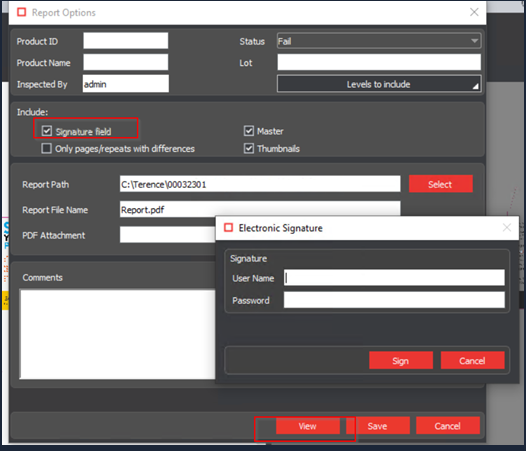
Then log in to GVD again using the account to approve the reports and run an inspection, under all the required information and click on View and then enter the login credentials.
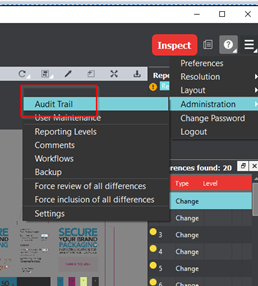
Go to Audit trail
Look for the report that you previously ran and click on Sign.