
1. GVD 5.8.2 Interface
In order to perform Braille backside scanning with Epson Perfection V600 user needs to follow these steps in the GVD interface for initial setup:
Instructions:
-
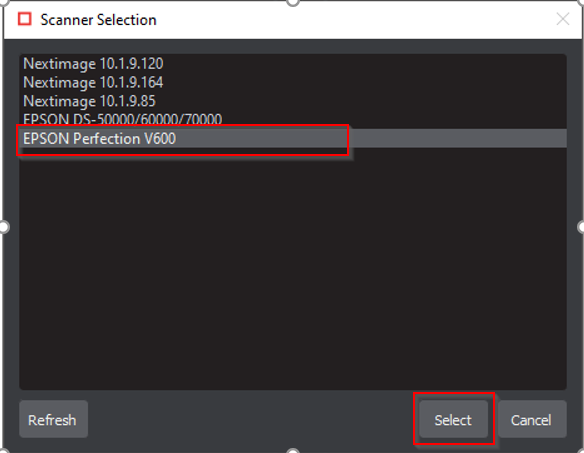
Select Epson scanner in the 'Select Source'
-
Create 'Braille Action' for backside braille translation using Admin account
-
Expand 'Action' dropdown
-
Select 'Settings'
-
Click 'Add' button
-
Give profile name e.g. Translate Sample BacksideScan
-
Select 'Action' as 'Sample' and Braille Type as 'Backside'
-
Click 'Update'
-
Click 'Close'
-
Select newly added action
2. Epson Interface for Braille Backside Scan
-
Scanner Name: Epson Perfection V600
-
Epson Driver Version: 3.9.3.0 US
-
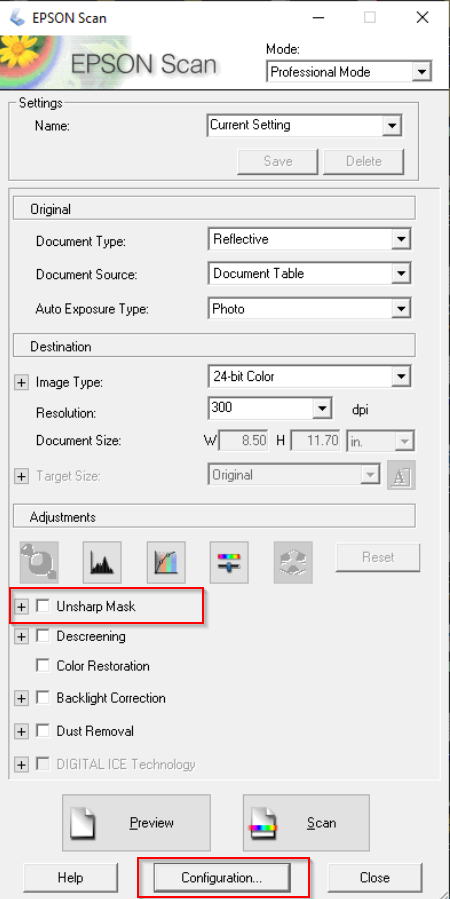
Mode: Professional Mode
Instructions:
-
Unsharp Mask → Uncheck
-
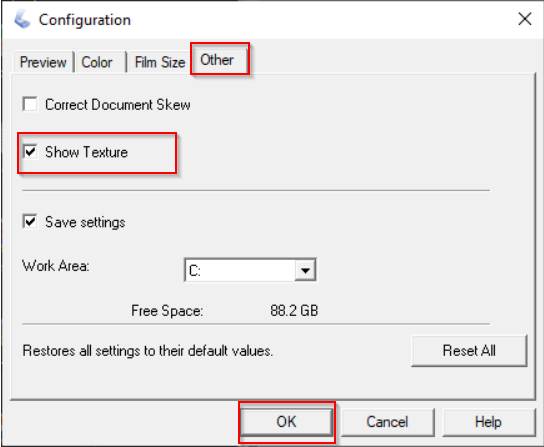
Configuration → Other → Check 'Show Texture' option. (Each time you scan, this option has to be checked manually).
Click Inspect in GVD 5.8.2 Interface. Scan using Epson Scanner with the above-mentioned settings.