Summary
This section describes the steps to follow when running a spelling inspection.
Steps
Step 1: Load Files for Spelling Inspection
To inspect spelling:
-
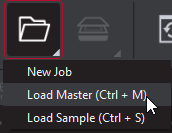
Click on the File Menu icon on the top panel → then Load Master or click in the Master panel to launch the load-file window. The Master image loads in the Master panel.
Or,
-
You can also load a file by using drag and drop.
-
If the file is a PDF:
-
The integrated PDF Viewer displays.
-
Prepare the Master image using the PDF Viewer tools, if required. Click Inspect for the results to display in the Inspection View.
-
then,
-
Click on File Menu → then Load Sample or double-click in the Sample panel and follow the same steps as above.
Step 2: Load Scanned Files
Note: Users can skip Step 2 if Electronic File is being loaded.
-
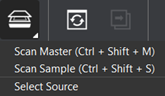
Click on Load from Scanner → then Select Source.
-
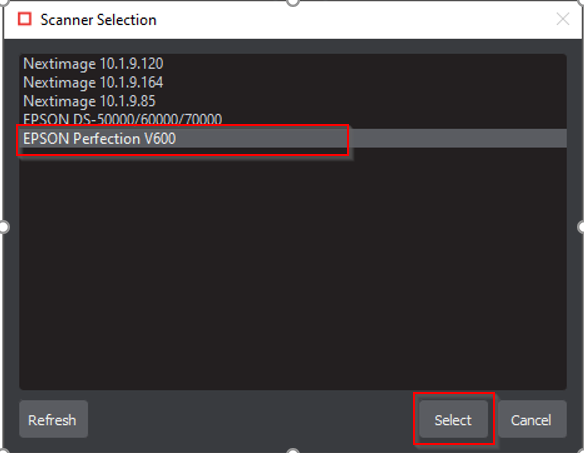
Select the applicable GlobalVision scanner from the Scanner Selection window and click Select.
Or,
-
Click on Load from Scanner → then Scan Master to scan the Master document. Once scanned the image loads in the Master panel.
then,
-
Click on Load from Scanner → then Scan Sample to scan the Sample document. Once scanned the image loads in the Sample panel.
Step 3: Select an Action
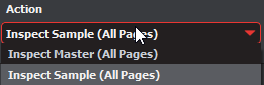
To inspect the file in the Master panel for spelling:
-
Click Action → Inspect Master (All Pages).
To inspect the file in the Sample panel for spelling:
-
Click Action → Inspect Sample (All Pages).
Step 4: Select a Language
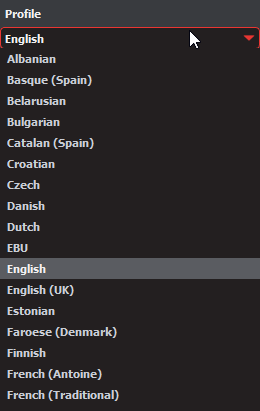
-
Click the Profile drop-down menu to access the Application's library of available languages. Select the language that best suits your inspection needs from the drop-down menu.
Step 5: Ensure proper Inspection Area is selected using the Pre-Inspection Tools
Step 6: Run the Inspection
-
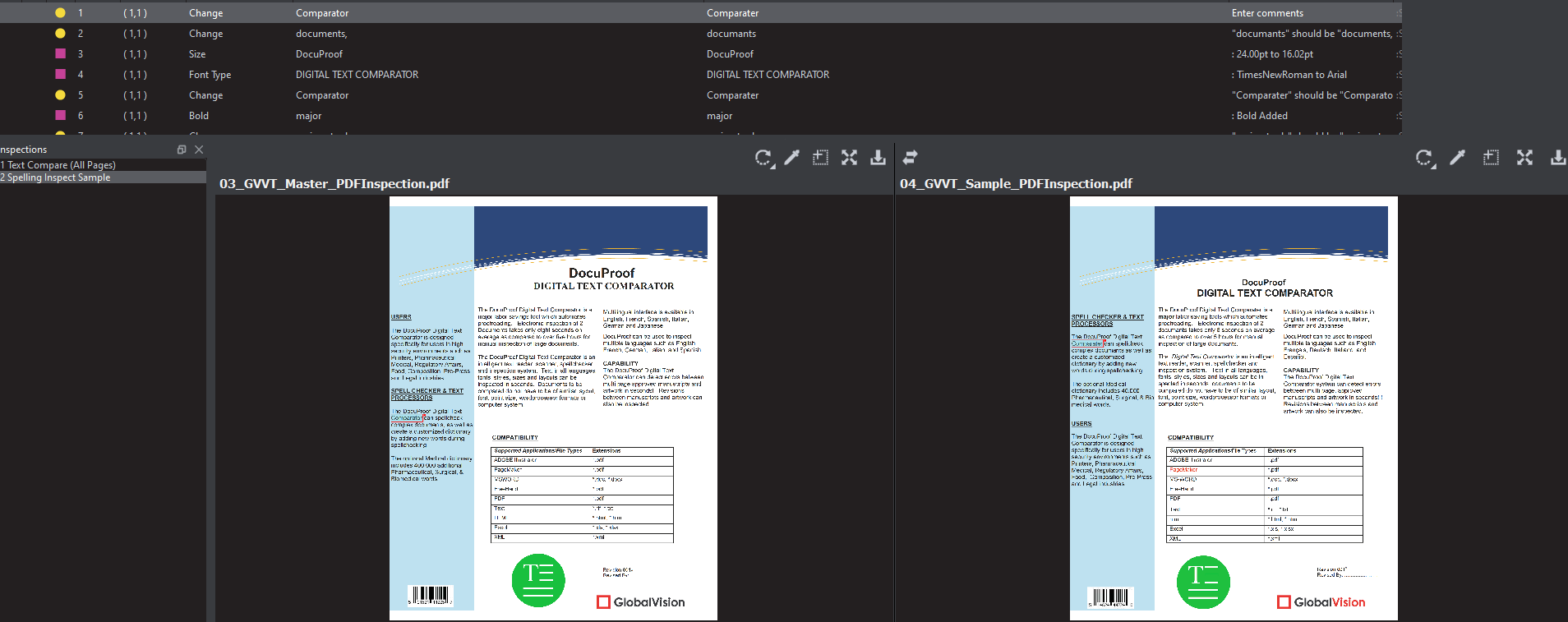
Click Inspect. The files are inspected and the differences display in the Inspection View.
Step 7: View the Results
To view the inspected file:
-
To review the difference list navigate through them using either keyboard arrows or by clicking on each difference.
-
Use the trackwheel to zoom in or out.
-
Hold the left mouse button and move it around to pan the image.
Step 8: Go through differences to assign levels and comments
Step 9: Modifying/Resetting Inspection Results
Step 10: Generate the Report
-
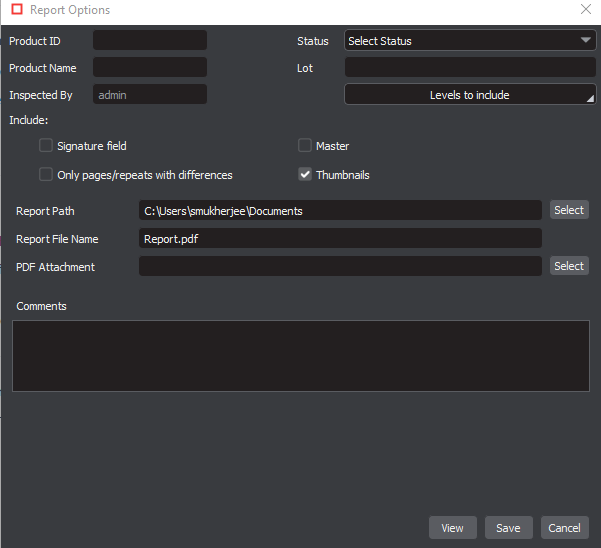
Click the Report icon.